glTF, 3D Object Import
Lens Studio supports importing the glTF file format for 3D models. This guide covers how to import a glTF file into a Lens Studio Project.
Please refer to the Performance and Optimization Details guide for 3D model performance requirements, 3D Optimization gide for further compression help.
Supported Extensions
In addition to the base specification, Lens Studio also supports a number of extensions:
- KHR_draco_mesh_compression
- KHR_materials_clearcoat
- KHR_materials_transmission
- KHR_materials_sheen
- KHR_materials_unlit
- KHR_texture_transform
Import glTF into Lens Studio
From the Application Menu
Select File -> Import... from the menu bar in Lens Studio.
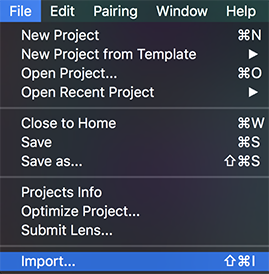
Find the glTF file on your computer, and select Open.
From the Resources Panel
In the Resources panel, select + -> Import Files.
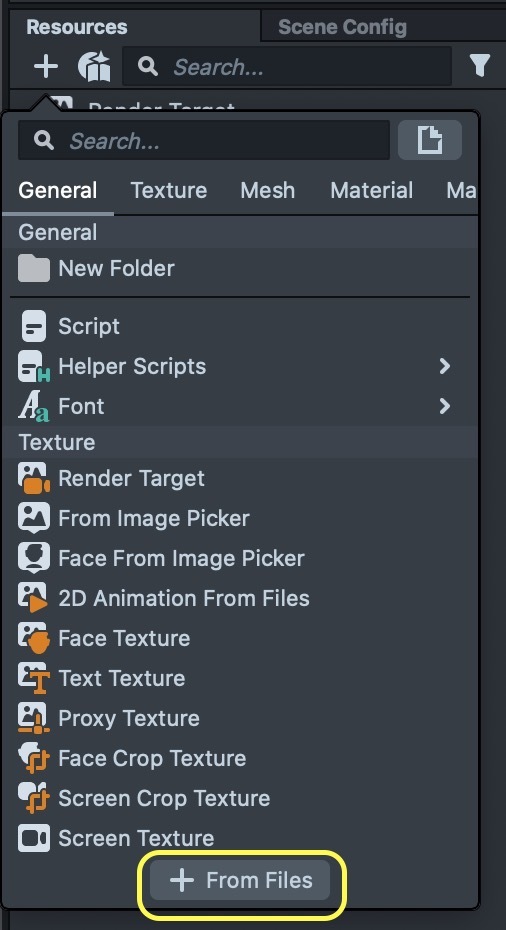
Find the glTF file on your computer, and select Open.
Dragging and Dropping
You can drag and drop glTF files from your computer directly into the Resources panel or the Objects panel.
If you drag into the Objects panel, your glTF will automatically be added to your scene. If you drag into the Resources panel, however, your object will only be added as a resource.
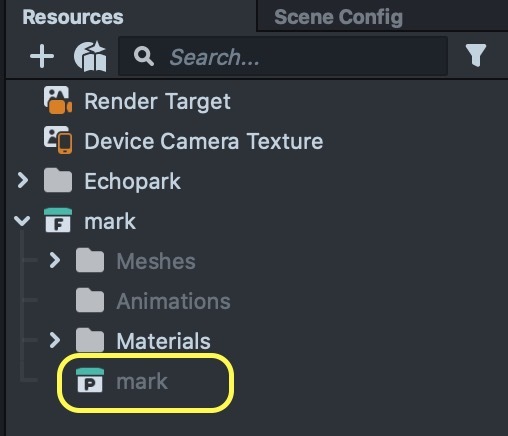
To add your model into the scene, open the new folder created by the gLTF import, and drag the prefab from the Resources panel into your scene, or Objects panel.
Import Options
Once you add a glTF file to your project, you'll be presented with a panel of glTF Import Options. You can customize these options to configure the imported glTF resource.
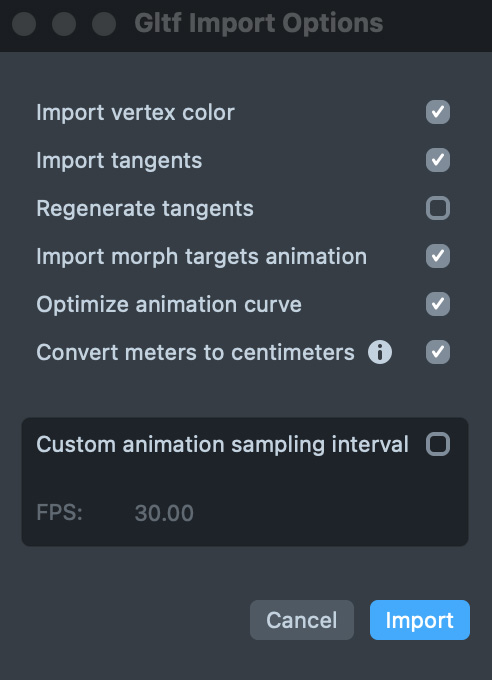
- **Import vertex color:**If enabled, includes vertex color information
- **Import tangents:**If enabled, includes tangent information
- **Import morph targets animation:**If enabled, includes morph target animation. For more information on playing back mesh animations, visit the guide on Playing 3D Animation
- **Optimize animation curve:**If enabled, applies a size optimization to the model's animation
- **Convert meters to centimeters:**If enabled, converts meters to centimeters to meet glTF specification. The units for linear distances in glTF are meters, whereas in Lens Studio they are centimeters.
- **Custom animation sampling interval:**If enabled, allows definition of a custom animation frame rate
- **FPS:**The custom frame rate of the imported animation (defaults to 30 frames per second)
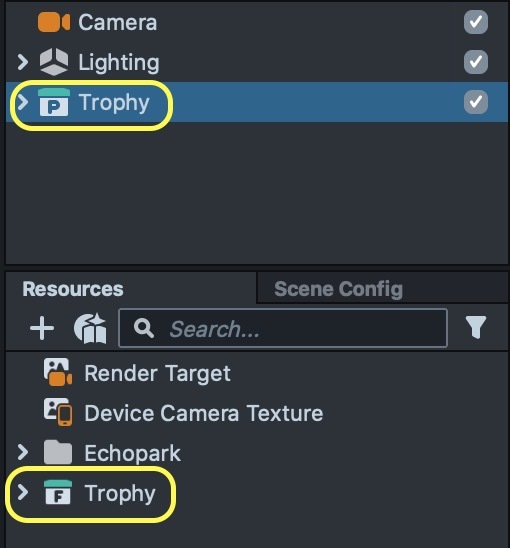
Once the glTF is imported into Lens Studio, you should see it listed in your Objects panel as a new object added to the scene. It will also appear in your Scene panel, where it can be manipulated. Finally, your model resource will now be available in the Resources panel as well.
If your glTF fails to import, check the Logger panel for an import error message.