Eye Color
The Eye Color effect allows you to change the color of the user's eyes. It also allows you to create subtle eye reflections with the more advanced Texture mode.
Create the Eye Color
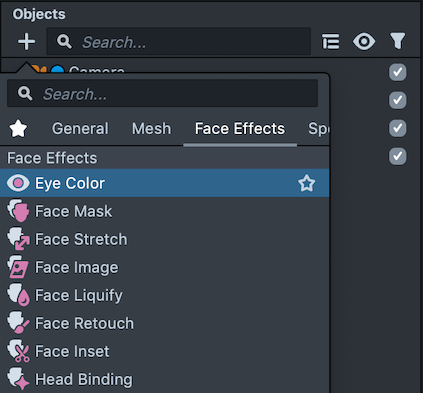
To create an Eye Color object, first click the "+" button in the Objects panel. Then, select Face Effects -> Eye Color.
Visualize the Eye Color
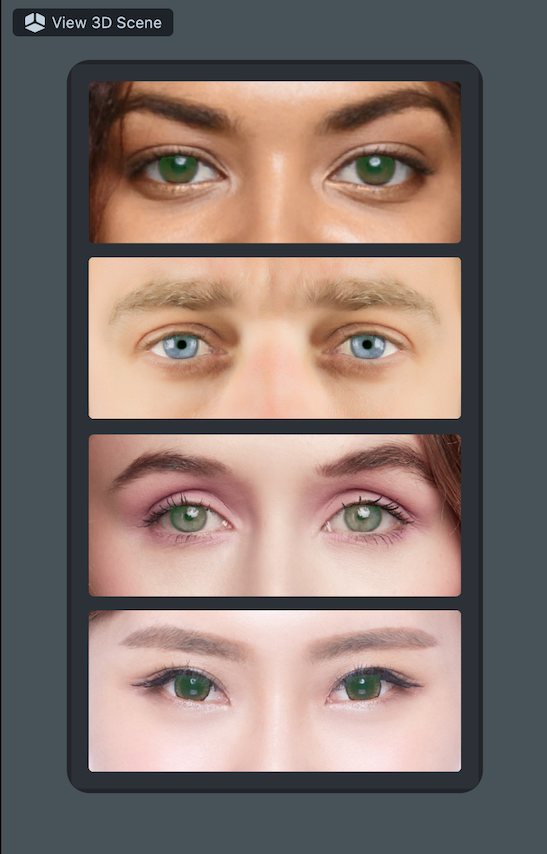
The Eye Color object is a 2D object. Adding a new Eye Color automatically opens the 2D Scene View to visualize the effects.
Eye Color Settings
In the Objects panel, select your newly created Eye Color object. You'll see a number of settings configurable in the Inspector panel.

- Face Index - Which face the object will apply to. The first face in the scene is 0; the second face in the scene is 1
- Apply To - Allows you to select which eye you want to apply the effect to. If both, select
Both Eyes - Mode - In
Colormode, you're able to select a color to apply to the eyes. InTexturemode, you're able to select a custom texture to apply to the eyes - Blend Mode - Using blend modes beyond
Normalhelps the texture blend more naturally with the eyes - Alpha - Allows you to tune the strength of the eye coloring. Often, we dial back the alpha of an
Eye Colorobject so it blends more naturally with eyes
Was this page helpful?