VFX Sub-Graph Library
This page lists VFX Sub-Graph Library presets in alphabetical order, grouped by Particle Behavior.
In VFX Editor, you can create regular Sub-Graphs as seen in Material Editor, but you can also create Container Sub-Graphs to modify particle attributes. Container Sub-Graphs are functionally similar to regular Sub-Graphs, but they do not let you create Export nodes. Instead, Modify Attribute nodes can be connected vertically to manipulate particle data.
To learn more about Sub-Graphs in general, check out the Sub-Graph Overview page.
Getting Started
To create a Container Sub-Graph in a VFX Editor container, you can either click on the Add button or hit tab on your keyboard while pointing your cursor at a desired container. A sub-graph will only show up within its corresponding container (Spawn, Update or Output Quad). After the list appears, you can begin typing to filter subgraphs by name.
To create a Regular Sub-Graph outside of VFX Editor containers, hit tab on your keyboard while pointing your cursor anywhere outside of a VFX container.
Remember, you are not limited by all these presets below: an empty sub-graph is at the bottom of the sub-graph list (or by typing “Sub-Graph” in the search menu) for you to create your own.
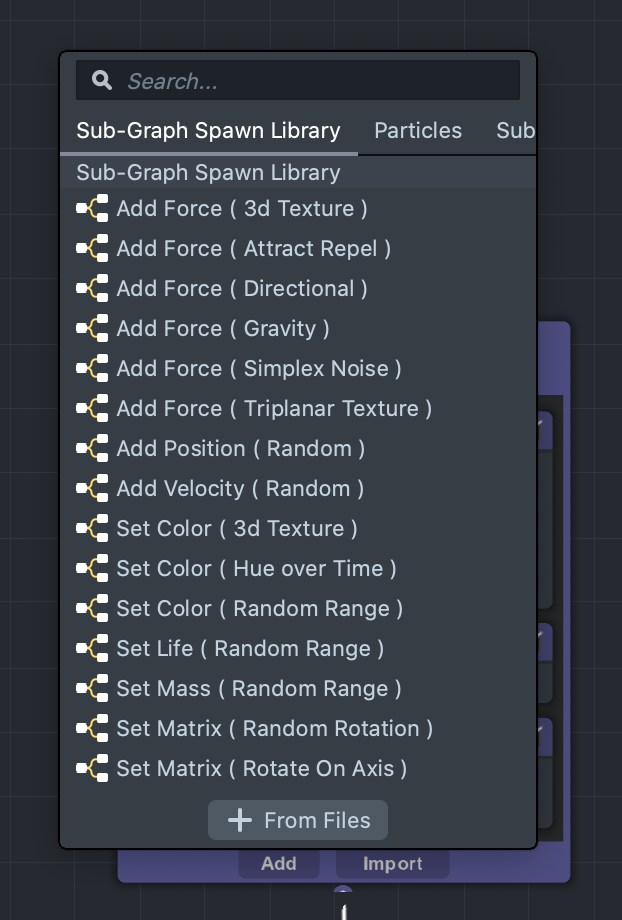
Container Sub-Graphs can be imported and exported to files on your hard drive like regular sub-graphs. Depending on which container you exported the sub-graph from, it will come with one of three new extensions:
- subgraph_vfx_spawn
- subgraph_vfx_update
- subgraph_vfx_output
Container Sub-Graphs can only be imported onto the same container type from which they were exported.
Container Sub-Graphs
Color
Set Alpha ( by Age ) Update
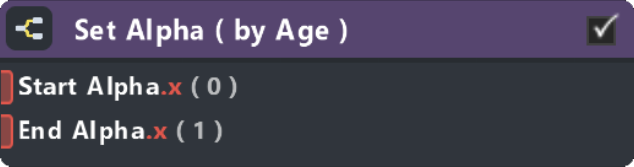
Alpha animates from the Start Alpha value to the End Alpha value based on normalized particle age ratio (0-1).
Set Alpha ( Fade In/Out ) Update
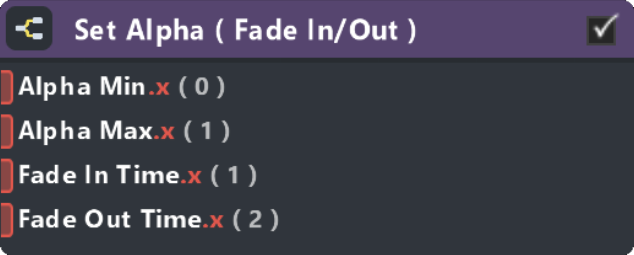
Alpha animates from Alpha Min to Alpha Max in the amount of time (seconds) set on Fade In Time, relative to the moment the particle spawns. Alpha then animates back to Alpha Min in the amount of time (seconds) set on Fade Out Time, relative to the lifespan of the particle.
Set Color ( 3D Texture ) Spawn Update
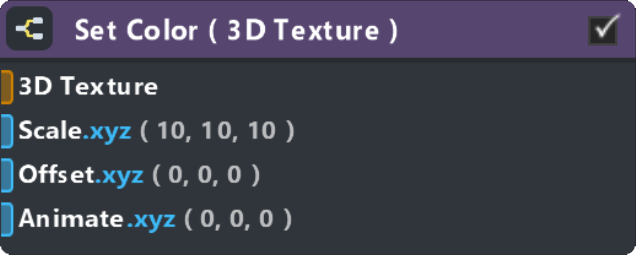
Set particle color by sampling a 3D texture, using Particle Position as the sample coordinate. Scale is the size of the 3D Texture in particle space and Offset adds an offset to the particle position. More 3D textures can be found in the Asset Library.
Set Color ( by Age ) Update
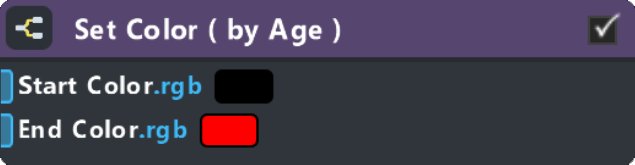
Particle Color animates from the Start Color RGB value to the End Color RGB value based on normalized particle age ratio (0-1). Note that this only sets RGB Color, to control alpha use Set Alpha ( by Age )sub-graph.
Set Color ( Fade In/Out ) Update
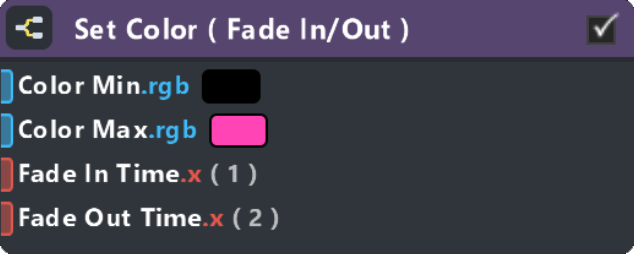
Color animates from Color Min to Color Max in the amount of time (seconds) set on Fade In Time, relative to the moment the particle spawns. Color then animates back to Alpha Min in the amount of time (seconds) set on Fade Out Time, relative to the lifespan of the particle. Note that this only sets RGB Color, to control alpha use Set Alpha ( Fade In/Out )sub-graph.
Set Color ( Hue over Time ) Spawn
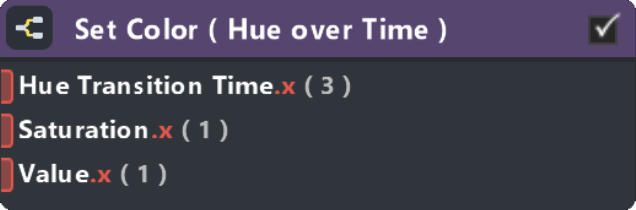
Spawn with varying colors over time. Hue Transition Time controls how long it takes to rotate the hue 360 degrees (to go from red through the color spectrum and back to red again). Saturation and Value range from 0 to 1.
Set Color ( Random Range ) Spawn
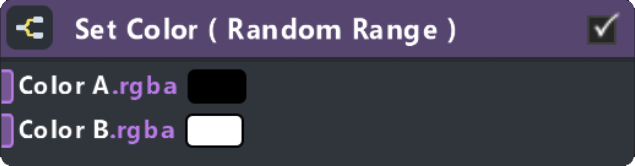
Sets particle color to be a mix between two colors, with random weight to either Color A or Color B.
Set Color ( Ramp Texture by Age ) Update

Sample a 1D ramp texture and set the color by normalized particle age ratio (0-1).
Note that the Y coordinate for this texture sample is set to 0.5.
Force
Add Force ( 3D Texture ) Spawn Update
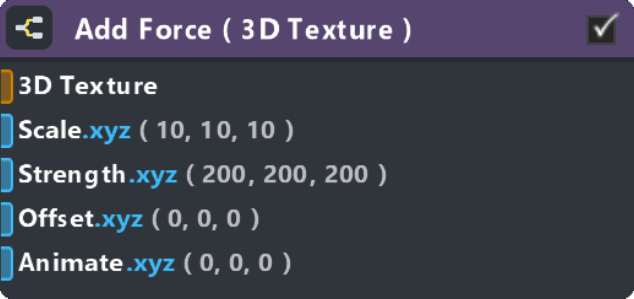
Add force by sampling a 3D Texture using Particle Position as the sample coordinate. Scale is the size of the 3d texture in particle space, Strength is a multiplier on the force, Offset adds an offset to the particle position, and Animate will offset the coordinates over time with this value controlling the speed. More 3D textures can be found in the Asset Library.
Add Force ( Attract / Repel ) Spawn Update
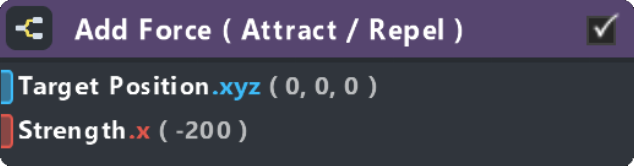
An attractive or repulsive force depending if the Strength is positive or negative. Attractive forces have positive Strength values and repulsive forces have negative Strength values. Target Position is the position where the force is attracted to or repelled from.
Add Force ( Directional ) Spawn Update
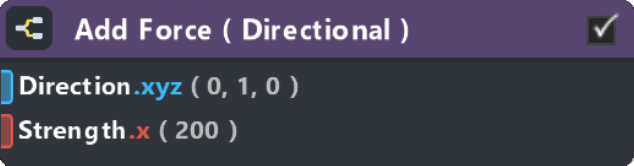
Force along a given XYZ Direction with a Strength control.
Add Force ( Drag ) Update
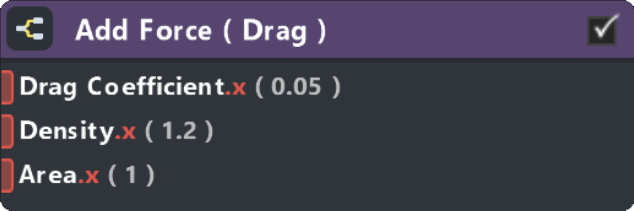
Resisting force of particle motion by slowing it down over time. The value of this force depends on Density (of the medium in which the particle exists), relative velocity, and the Area the cross section of the object facing in the direction of velocity (which currently is user-definable). The Drag Coefficient value is very sensitive, a smaller Drag Coefficient means less drag on particles.
Note the default Density value is 1.2 selected to represent air, 1.21 kg/m^3.
Set Force ( Gravity ) Spawn Update

Adds a gravitational force. Gravity Scale scales the gravitational constant.
Add Force ( Simplex Noise ) Spawn Update
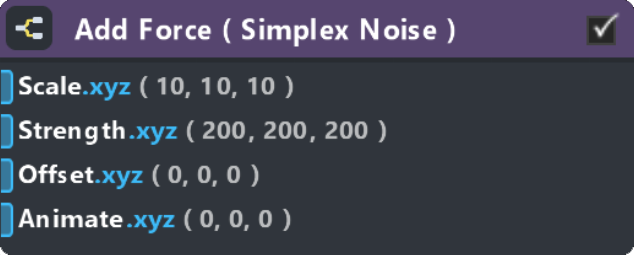
A procedural simplex noise force using Particle Position for the noise coordinate. Scale is the size of the noise in particle space, Strength is a multiplier on the force, Offset adds an offset to the particle position, and Animate will offset the coordinates over time with this value controlling the speed.
Add Force ( Triplanar Texture ) Spawn Update
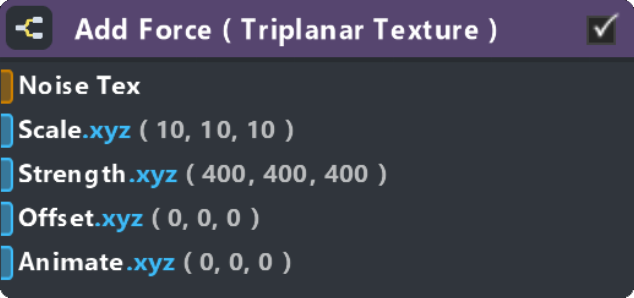
A 3D noise force derived from a 2d texture by sampling in three axes using Particle Position as the sample coordinate. Scale is the size of the noise in particle space, Offset adds an offset to the particle position, Strength is a multiplier on the force, and Animate will offset the coordinates over time with this value controlling the speed.
Life
Set Life ( Random Range ) Spawn
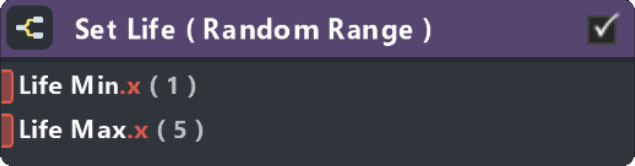
Set life to be a random value between Life Min and Life Max.
Mass
Set Mass ( Random Range ) Spawn
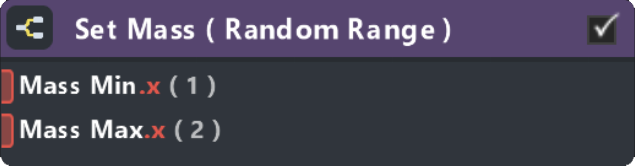
Set mass to be a random value between Mass Min and Mass Max.
Matrix
Set Matrix ( Random Rotation ) Spawn
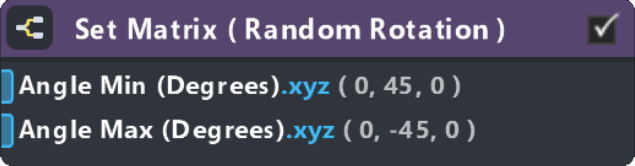
Set the particle matrix to be a random rotation matrix between Angle Min (Degrees) and Angle Max (Degrees).
Set Matrix ( Rotate on Axis ) Spawn Update
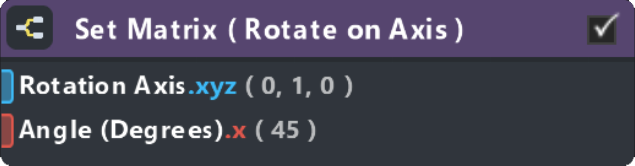
Transforms the particle matrix to rotate about a Rotation Axis and Angle (Degrees).
Set Matrix ( Rotation Angle ) Spawn Update

Set the particle matrix to be a rotation matrix with XYZ angles by Angle (Degrees).
Set Matrix ( Rotate by Velocity ) Update

Transforms the particle matrix to rotate along an axis relative to its velocity. Rotation Amount controls how much rotation is applied on each frame.
Position
Add Position ( Random ) Spawn

Adds random offset Amount to the position.
Set Position Plane ( Disc ) Spawn
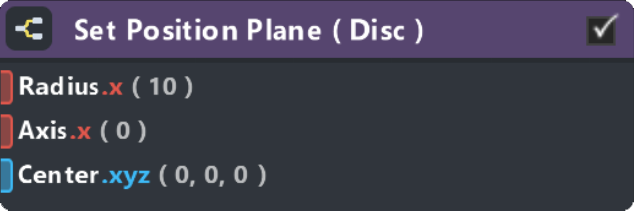
Spawn particles within a 2d disc with Radius, Center and Axis controls. Axis 0 = XY, Axis 1 = XZ, Axis 2 = YZ.
Set Position Plane ( Square ) Spawn
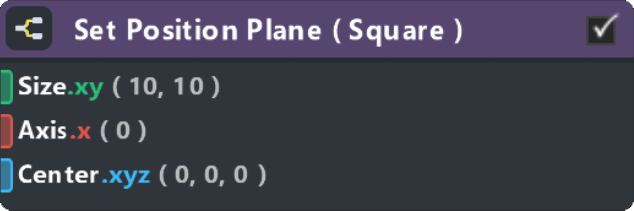
Spawn particles within a 2d rectangle with Size, Center and Axis controls. Axis 0 = XY, Axis 1 = XZ, Axis 2 = YZ.
Set Position Volume ( Cube ) Spawn
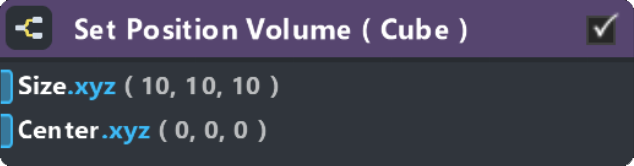
Spawn particles within a 3d cube with Size and Center controls.
Set Position Volume ( Sphere ) Spawn
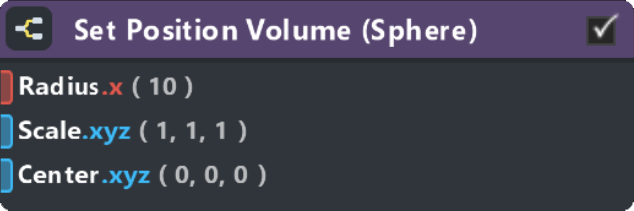
Spawn particles within a 3d sphere with Radius, Scale and Center control.
Set Position Volume ( Torus ) Spawn
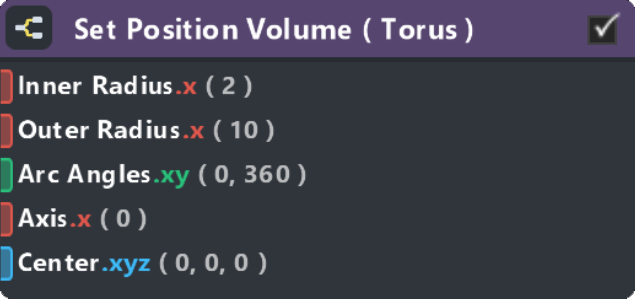
Spawn particles within a 3d torus. Inner Radius controls the thickness of the torus, Outer Radius controls the overall diameter of the torus, Arc Angles controls how much of the circle is used. Axis 0 = XY, Axis 1 = XZ, Axis 2 = YZ.
Size
Set Size ( Compute from Mass ) Spawn

Set particle size based on the mass value.
This sub-graph should be used after modifying particles mass (eg. with a Set Mass ( Random Range ) sub-graph before this one).
Set Size ( Random Range ) Spawn
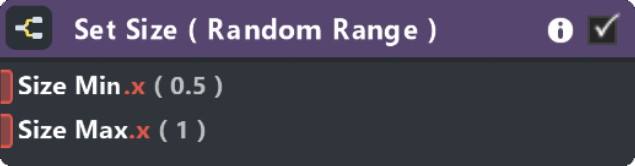
Set life to be a random value between Size Min and Size Max.
Set Size ( by Age ) Update
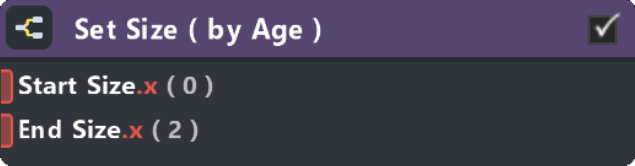
Particle size animates from the Start Size value to the End Size value based on normalized particle age ratio (0-1).
Set Size ( Fade In/Out ) Update
Particle size animates from Size Min to Size Max in the amount of time (seconds) set on Fade In Time, relative to the moment the particle spawns. Size then animates back to Size Min in the amount of time (seconds) set on Fade Out Time, relative to the lifespan of the particle.
Velocity
Add Velocity ( Random ) Spawn
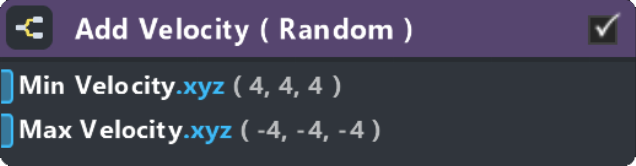
Add a random velocity value between Min Velocity and Max Velocity.
Multiple
Collision ( Bouncy Floor ) Update
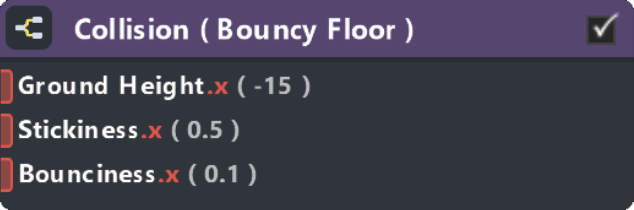
Particle will collide and bounce off an XZ plane set to Ground Height. Stickiness slows particles down: when set to 0, particles will never stop bouncing. Bounciness multiplies the particle velocity after collision.
Pixel Color
Particle Lighting ( Phong ) Output Quad
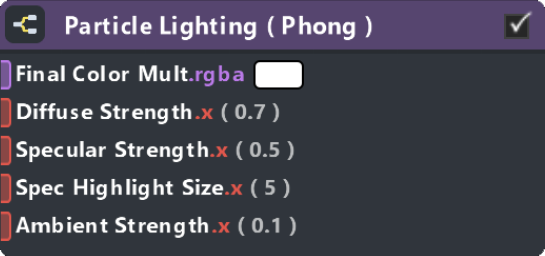
Apply basic Phong shading on particles using Directional and Point Lights. Lights can be added and manipulated under Objects > Light > Light Source.
To enable shadows, click on the Output Quad container, go to Graph Properties on the right-hand side and change Shadow Mode to Caster at the end of the list. Click on the directional light you wish to create the shadow from in the Object panel and enable the Shadow check box under the Inspector. Finally, add a Shadow Plane using Object > Shadow Plane. If you don’t see shadows, try to move your Shadow Plane down in case your particles are below the shadow receiver. Make sure the shadow plane is visible by the camera, and the light direction is casting towards the shadow plane.
Align to Camera Output Quad

Aligns particle quads to face their render camera and, optionally, orient and stretch along the particle’s velocity vector. Velocity Stretch Amount controls how much the particle is scaled along the velocity vector. When Velocity Stretch Amount is 0, particles only face the camera and are oriented relative to the camera’s up vector.
Align to Velocity Output Quad

Aligns particle quads to the particle velocity vector. Stretch Amount controls how much the particle is scaled along the velocity vector.
General Sub-Graphs
Attack/Decay
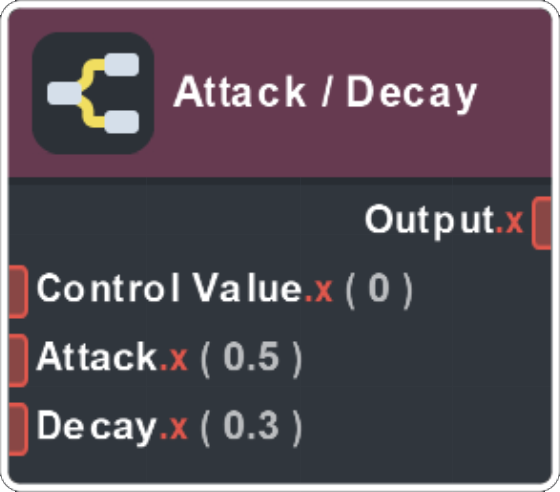
Creates an Attack/Decay envelope similar to musical instrument controllers. Attack is the amount of time it takes to reach from an amplitude of 0 to max value. Decay is the amount of time it takes for it to decrease from max amplitude to the value. Control Value is expected to be within the range of 0-1.
Camera Distance Fade
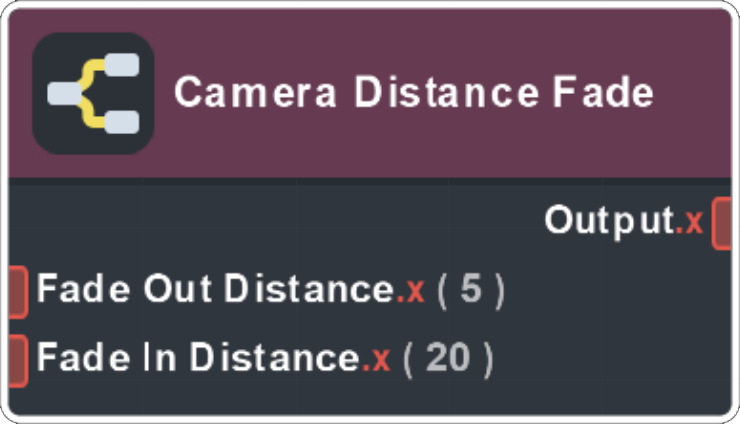
Computes a value that will fade “in” (1.0) or “out” (0.0) when a particle is a given distance from the camera. When the particle reaches the Fade In Distance, the value becomes 1.0, and when the particle reaches the Fade Out Distance, it becomes 0.0. This is useful for controlling particle attributes such as alpha or size. Default values are useful for fading particles out when they are close to the camera.
Cartesian to Spherical
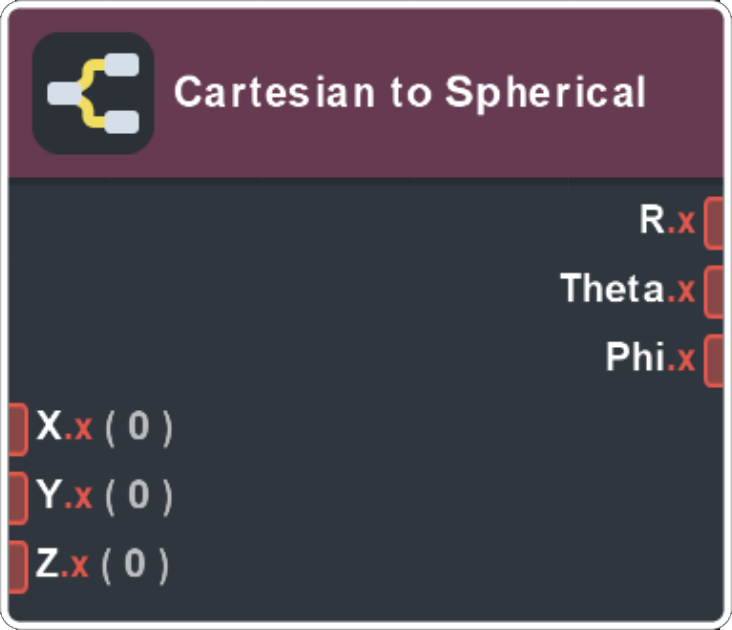
Converts from Cartesian (x,y,z) to Spherical (r,θ,φ) coordinates.
Color Ramp Sample
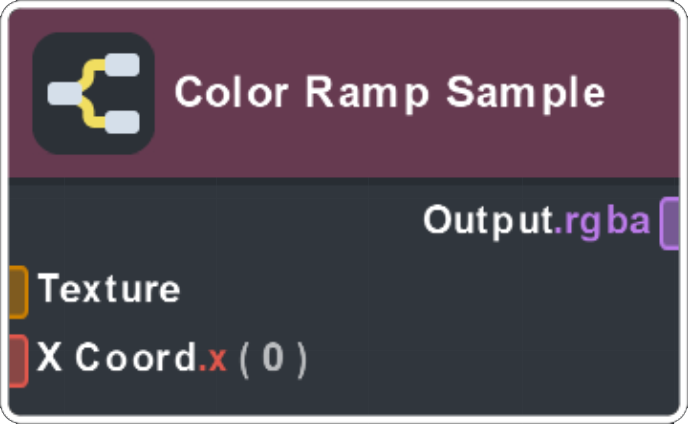
Sample 1D Ramp texture with X coordinate exposed.
Flipbook Blend
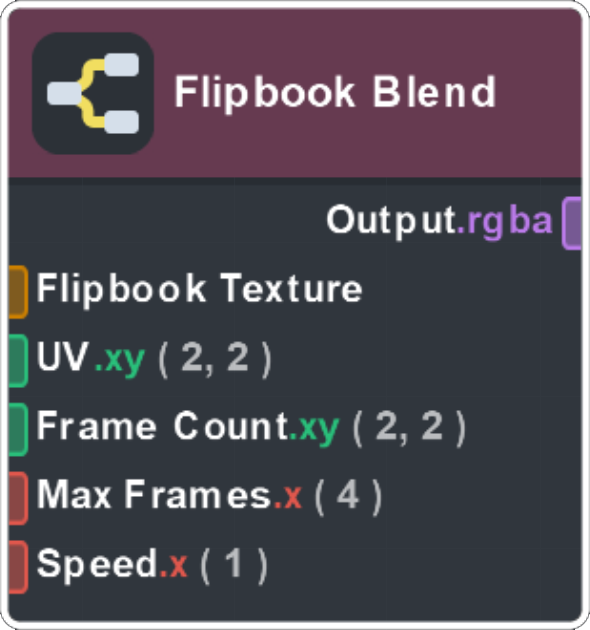
Blends a Flipbook animation between the current frame and the next frame, based on normalized particle age ratio (0-1).
Parabola
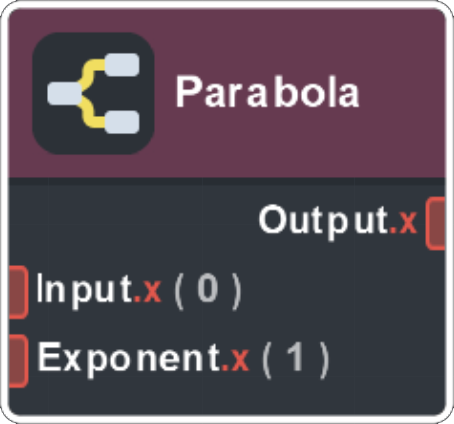
Computes a parabola where Input is the point along the X axis of the curve, and Exponent is the slope of the curve, with higher values causing sharper peaks. This is useful to create a customizable up and down ramp from a linear value such as particle age ratio (0-1) or a uv coordinate axis.
Particle Screen UV
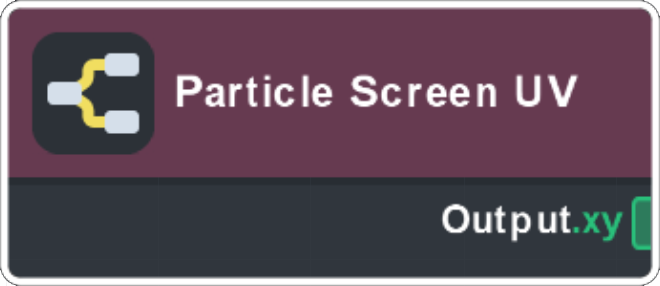
Computes the screen UV coordinate of the particle from its position, useful in the Spawn/Update stages of VFX Editor.
Pixel Fog
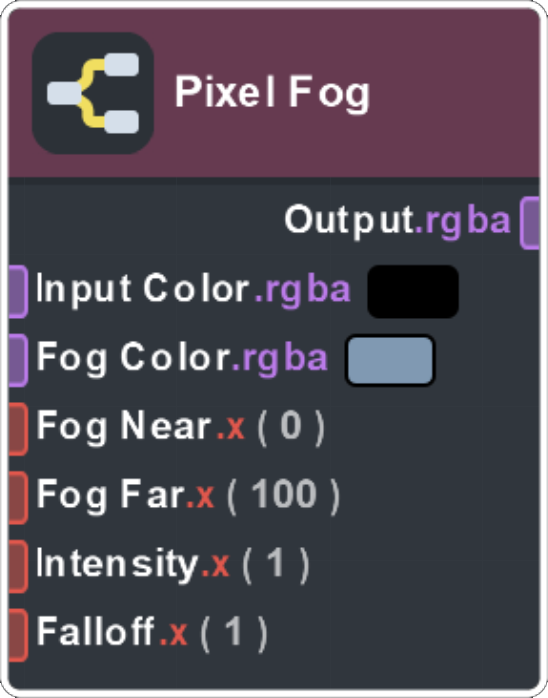
Applies simple z-depth fog to the Input Color. Falloff is an exponent on the near/far gradient, and Intensity is a multiplier on this gradient.
Rotate Arbitrary Axis
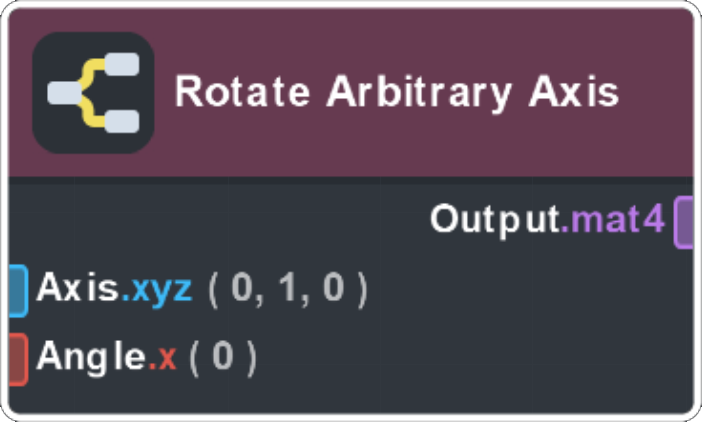
Returns a 4x4 matrix that rotates a point around a given axis by an amount, Angle (radians).
Spherical to Cartesian
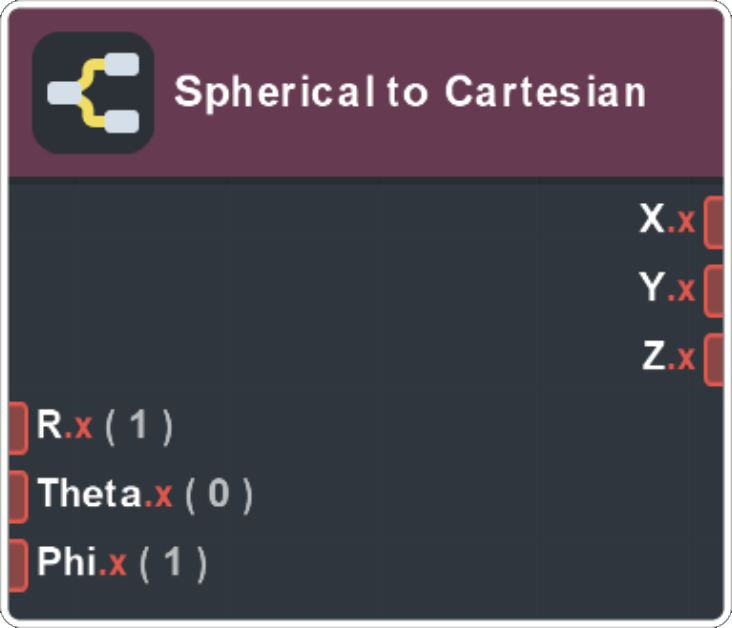
Converts from Spherical (r,θ,φ) to Cartesian (x,y,z) coordinates.
UV Circle
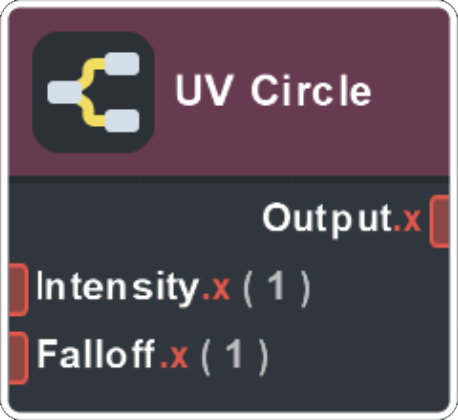
Generates a simple radial gradient by using Surface (UV Coord 0). Intensity is a multiplier on the result, and Falloff controls the softness of the gradient. Also see the Shape sub-graph for different shapes.
UV Circle Normal
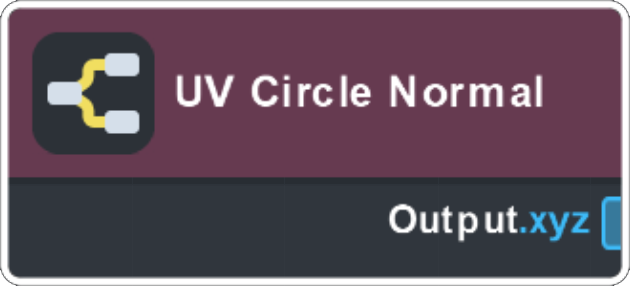
Generates a hemispherical normal using the Surface (UV Coord 0) attribute.