3D Hand Interactions
The 3D Hand Interactions Template allows you to create custom interactions (such as hand gestures) with the Object Tracking 3D component through helper scripts and gesture examples provided in the template.
This template provides some example custom interactions and helper scripts to help you get started. However, these interactions are built in the Lens through scripting. The scripts are heavily commented so you can try copy and pasting them to see how they work! If you are looking to make advanced or more custom interactions, we recommend some understanding of scripting.
Guide
This template comes with several setups to showcase how you can create interactions based on the hand
- Object Tracking 3D Component - An overview of how we are able to detect interactions and custom gestures
- Tracking Manager - An overview of the helper scripts provided by the template to help you build interactions
- Gesture Triggers - How you can define your own custom hand interactions
- Hand Interaction Examples
- Gesture Trigger Responses - How you can respond to the Gesture Triggers you've defined
- Grab Object with Hand - How you can use hand gestures to create a complex effect
- Scissors Trigger - How you can combine multiple gestures to create one effect
- Rotate Spoon by Index Finger - How you can use the 3d positions of hand joints with gestures
Object Tracking 3D Component
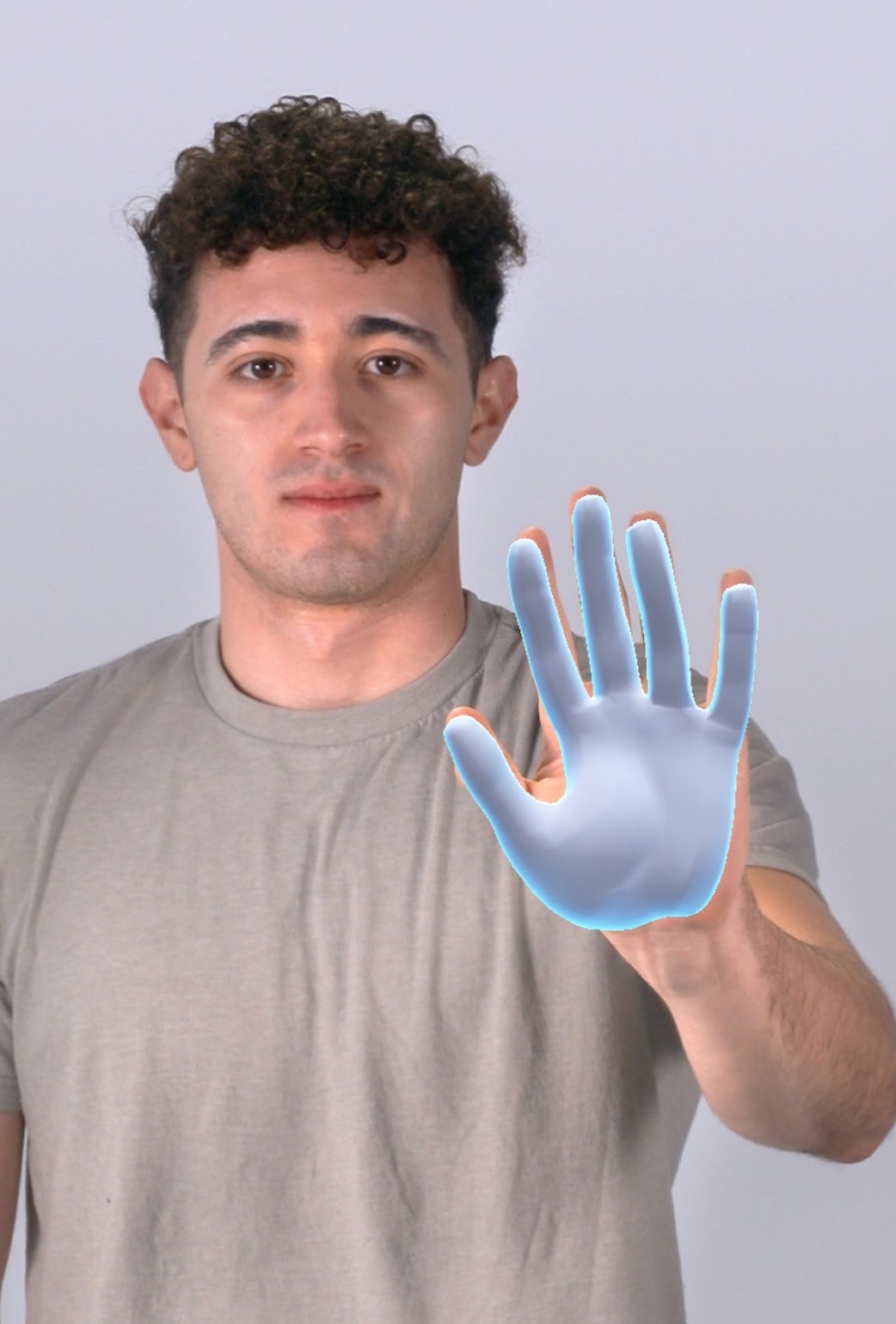
This template is made possible by the Object Tracking 3D component with the hand Tracking Asset, which allows the Lens you to track joints of the hand in 3D space. The tracking data from this component is then processed by scripts provided in this template to detect poses or gestures made by the hand.
Currently 3D Hand Tracking Component only supports one hand in scene at any given time for device optimization reasons. So if both hands are detected Lens Studio would randomly pick one hand to track.
There are built in gestures that a Lens can detect using machine learning. This template demonstrates using the joints provided by 3D hand tracking to define custom gestures.
Tracking Manager
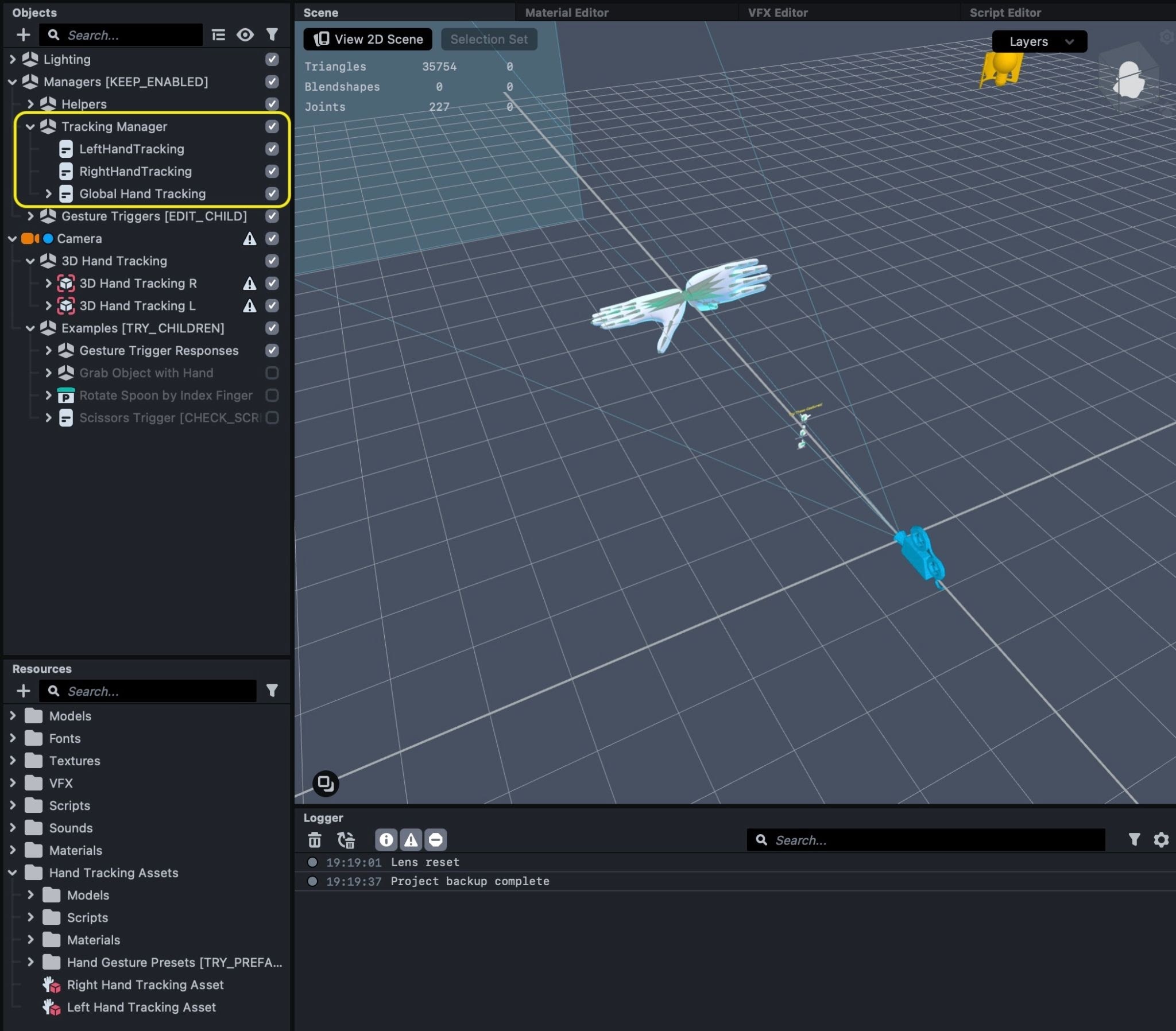
The Tracking Manager object at top of the project handles all hand interactions in the template. Make sure to keep this object enabled at all times.
Left Hand Tracking and Right Hand Tracking code would get hand tracking related data from its related 3D Hand Tracking component. The GlobalHandTracking Script contains global utility functions that can be called by any custom script.
Turn off the ShowJoints and ShowBones option on these scripts to hide hand joints and bones in the Preview panel*!*
Check out the GlobalHandTracking script from the Resources folder to see details of what each global function does and how to use them!
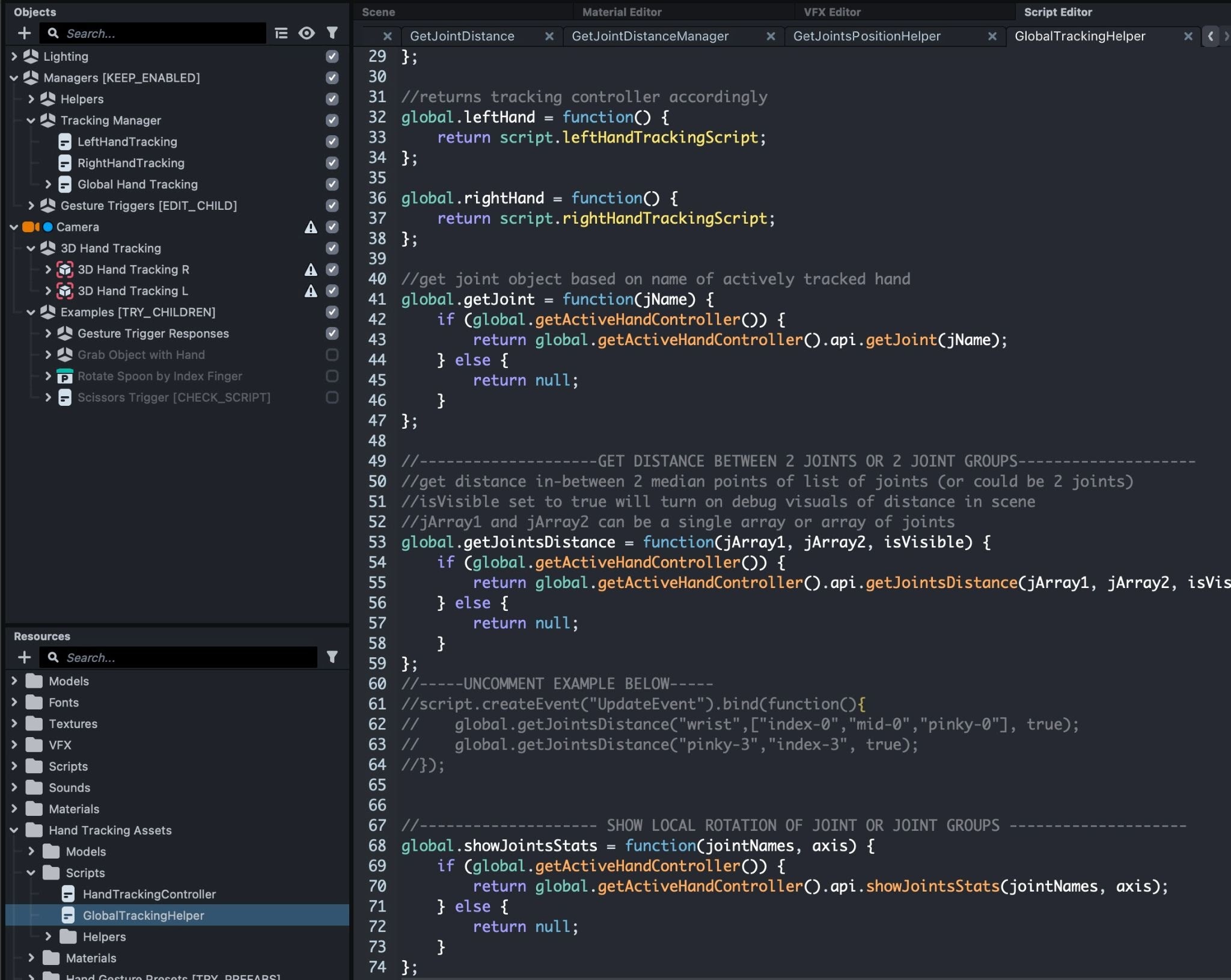
Global function is a good way for scripts across the whole project to access one function. Check out the section on the Global Scope in the scripting reference page. Note that you should be careful when using globals, as it might be unclear to the user where a function is coming from. We are using it here since it enables faster development, since these utilities would be used often and in many places. However, the template will always use global. as a prefix to any global function to help clarify where a function is coming from.
Gesture Triggers
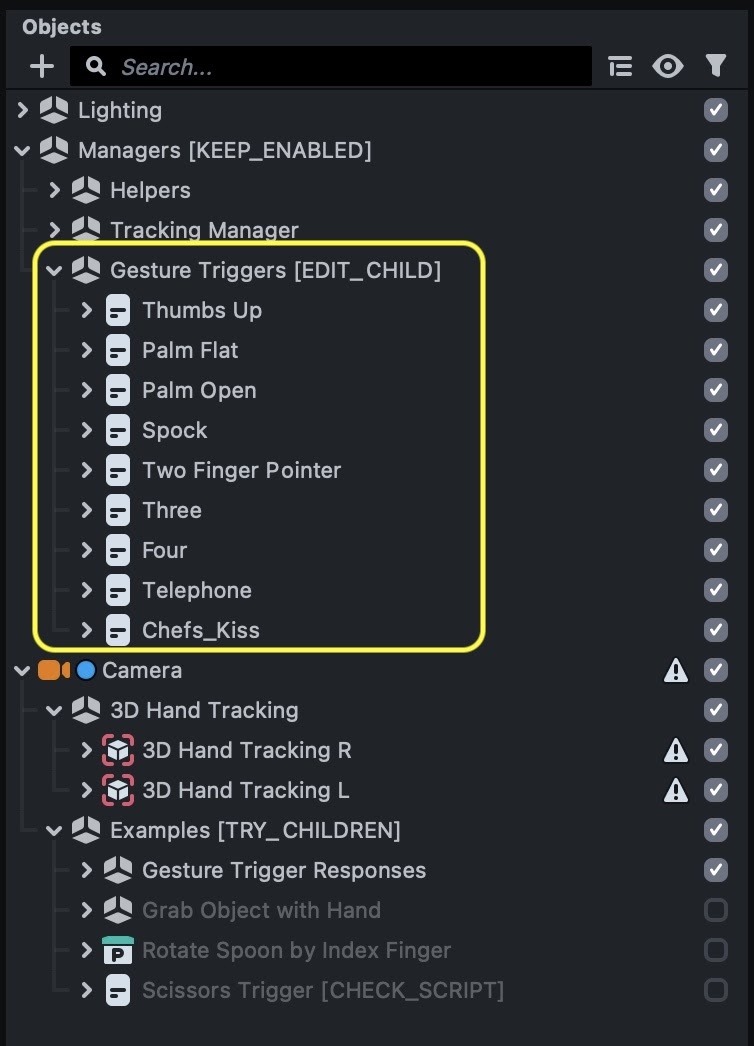
Under the Gesture Triggers object you’ll find modular helper scripts that define hand gestures based on distances between specific fingers, and send out behavior triggers based on whether the hand gesture is detected.
We are using the word "gesture" here colloquially, not as a reference to the built-in Hand Gesture detection available in Lenses.
Thumbs Up example
Let's explore one of the examples in the template to see how we can make a custom interaction. In this case, the Thumbs Up gesture is made when the index, middle, ring and pinky fingers are curved into the palm, and when the thumb is sticking out.
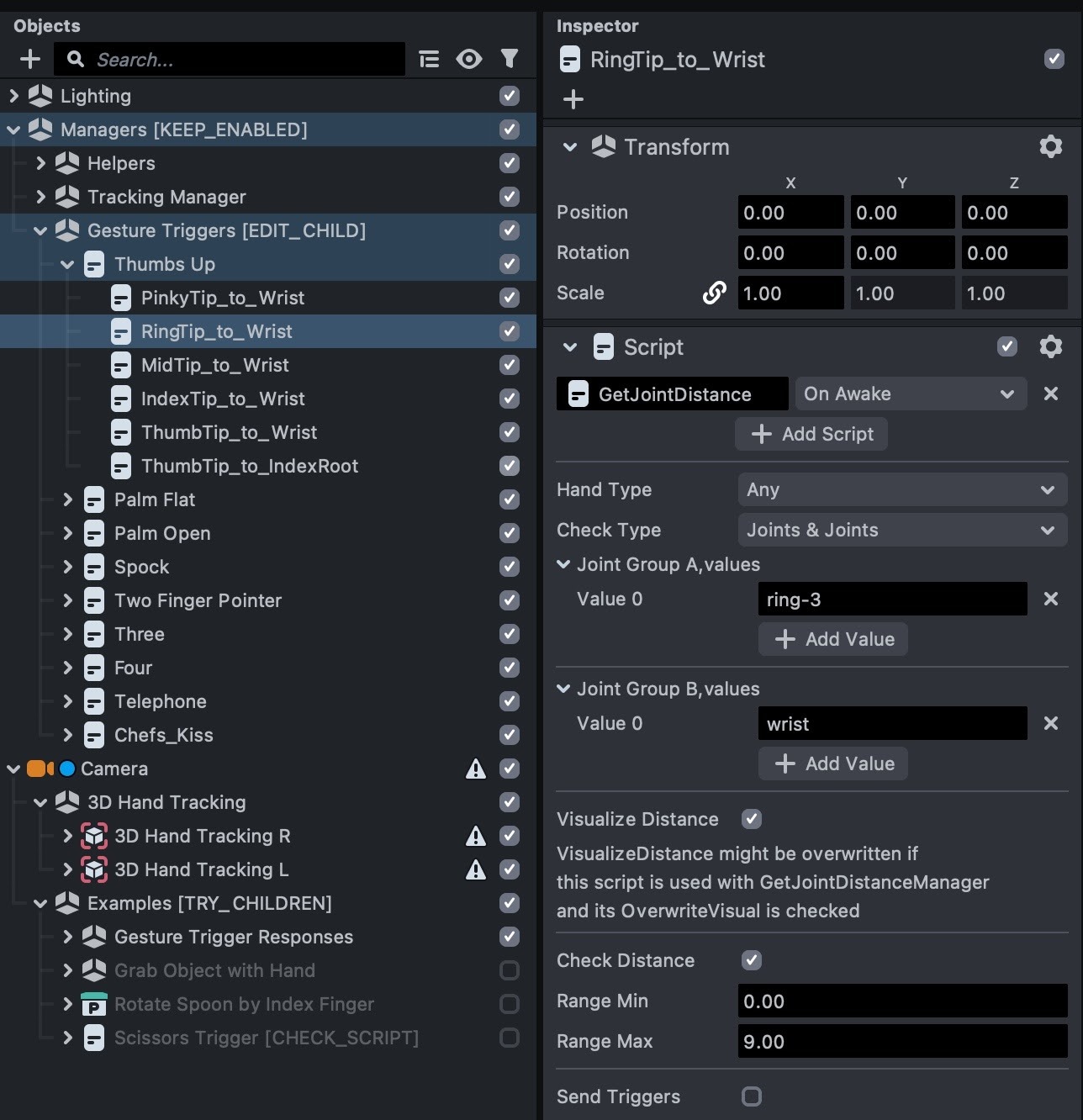
The way we define this gesture is by checking distances between the following:
- To make sure index, mid, ring and pinky are curved in:
- Distance between pinky finger tip joint and wrist joint is smaller than 9
- Distance between Ring finger tip and wrist joint is smaller than 9
- Distance between Middle finger tip and wrist joint is smaller than 9
- Distance between Index finger tip and wrist joint is smaller than 9
- To make sure thumb is sticking out:
- Distance between Thumb finger tip and wrist joint is larger than 9
- Distance between Thumb finger tip and index root is larger than 5
These checks are performed by the GetJointDistance script attached to each object under the Thumbs Up object. Feel free to customize this script to see how that affects gesture checks!
You can either input one joint name for each Joint Group, or a list of joint names which will return the middle position for the joint. For example, a list of: index-0, mid-0, ring-0 and pinky-0 will return a median point of all these joints. The lower the number, the closer the joint is to the wrist.
The GetJointDistanceManager script attached on the Thumbs Up object will get conditions from all these scripts, and send out a Gesture Detected trigger and Gesture Lost trigger when gesture is detected and lost.
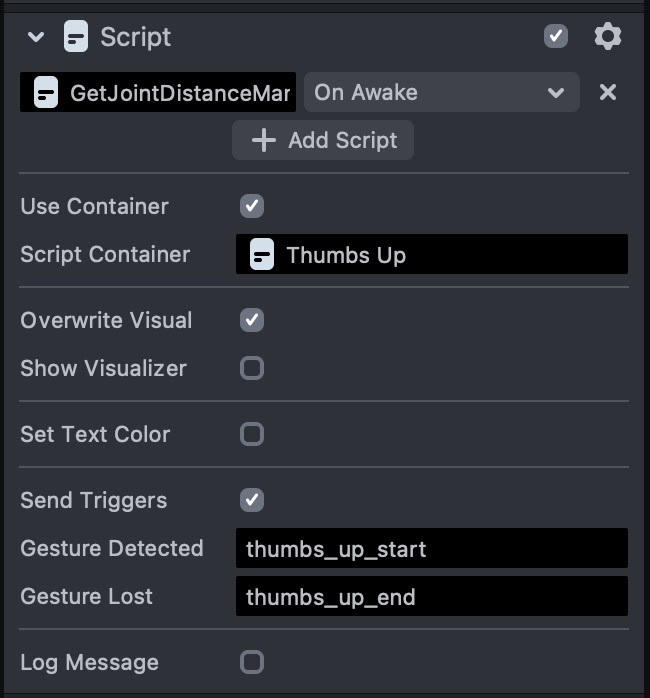
Turning on the OverwriteVisual and ShowVisualizer options will enable you to visualize each distance being checked based on child scripts connected to the ScriptContainer object, instead of the option in the manager.
Turning on the SetTextColor option will change the text color of the distance logger based on whether it’s within Range or not. This is useful for debugging.
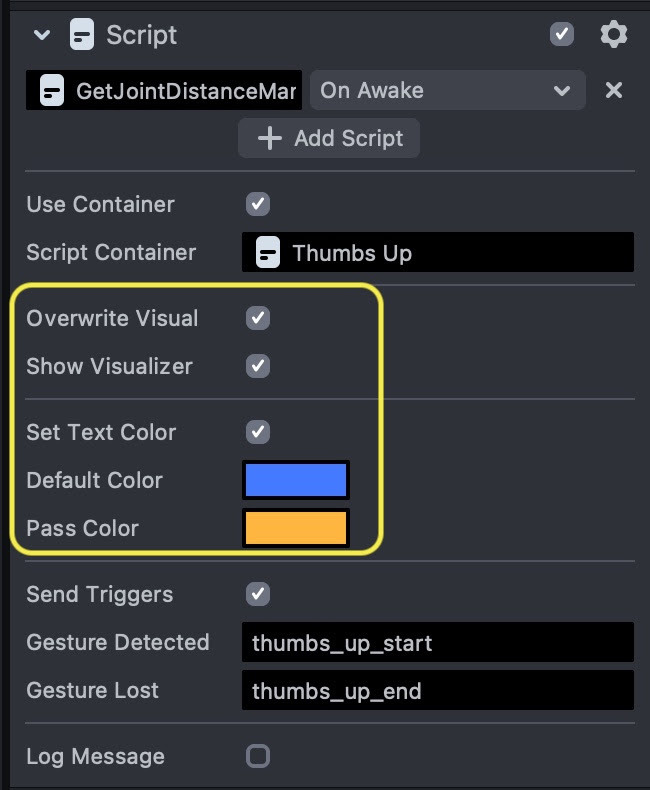
As we can see in the preview, the shown gesture has its thumb sticking out which grants the PassColor yellow to thumb distance checks, and the rest of fingers aren’t curved in which gives them the DefaultColor blue.
Feel free to duplicate from any of these examples under the Gesture Triggers example, and create your own gestures! Note that not all fingers need to be defined, if you want to create a gesture in which only certain fingers are defined, feel free to do so!
Hand Interaction Examples
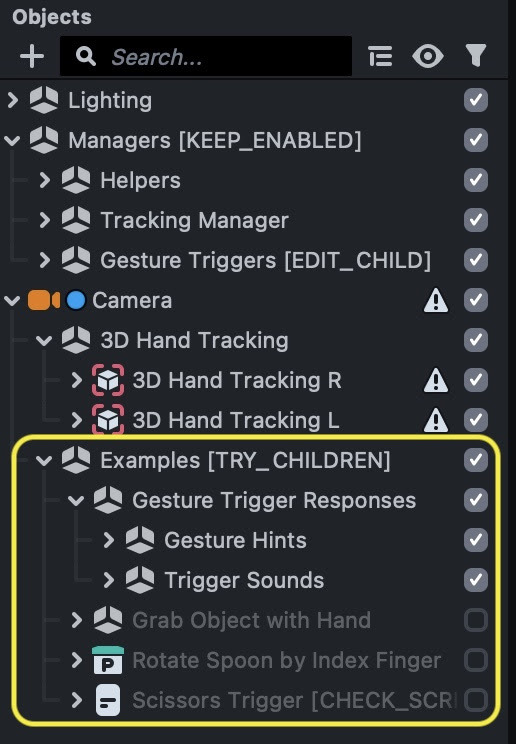
Under the Examples object you’ll find four examples of hand interactions. Please toggle them one by one to check how they work!
Gesture Trigger Responses
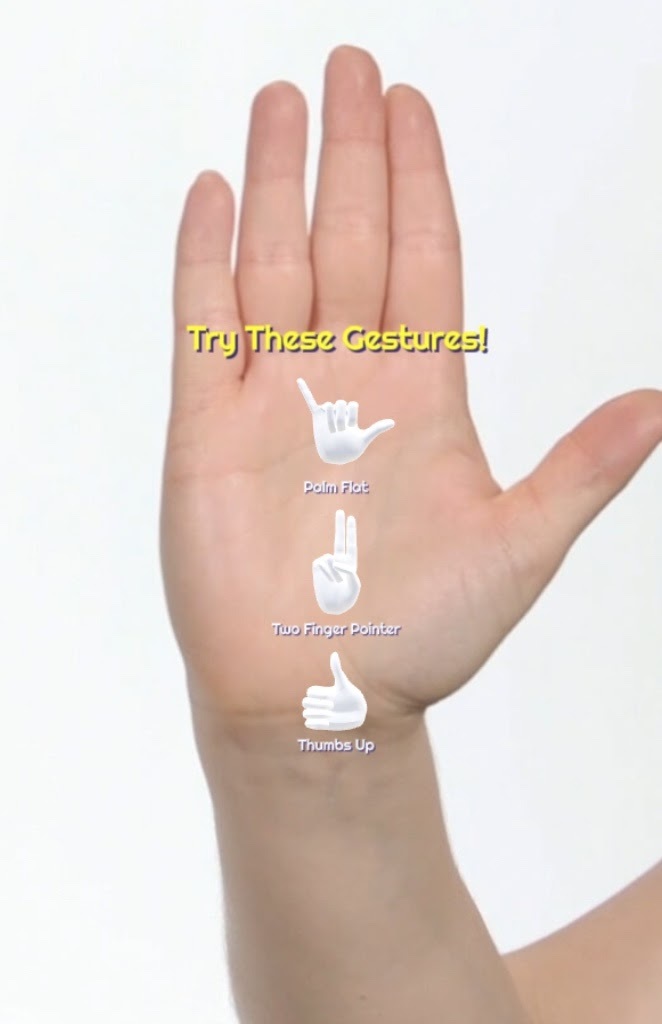
The Gesture Trigger Response work with the Gesture Triggers mentioned above. It’ll run tween and toggle objects based on Behavior triggers which match the ones sent out from Gesture Triggers.
Gesture Hints show 3 hints on screen by default, try making these gestures to make them disappear!
The Trigger Sound example triggers a sound every time a gesture is recognized. Turn on your volume to hear how it’s played with the example preview video! And feel free to customize these triggers to anything else!
Grab Object with Hand
This example lets you grab an object (e.g. the Frog with a helipad) in the scene. The example is composed of a few interactive scripts that work with each others to create this interaction:
- The
Grab Trigger(SingleGestureTrigger.js) which sends out a behavior trigger when the action ‘Grab’ is detected. - The
Set Follow Hand Helper(SetFollowHandHelper.js) which is a generic script that can set any object to follow any arbitrary joints’ median position and rotation of hand with an option of starting follow on behavior trigger. - The
Distance Indicatorwhich has theGetJointDistancescript which will show distance between hand and object in Preview.
Try modifying parameters on any of these scripts to see how it affects the project!
Single Gesture Trigger
The SingleGestureTrigger script does similar things to the Gesture Triggers objects mentioned above. Instead of having to create multiple helper scripts that define a gesture, the SingleGestureTrigger script triggers one single gesture with one script.
You can see in detail how the gesture trigger works in the getGesture() function!
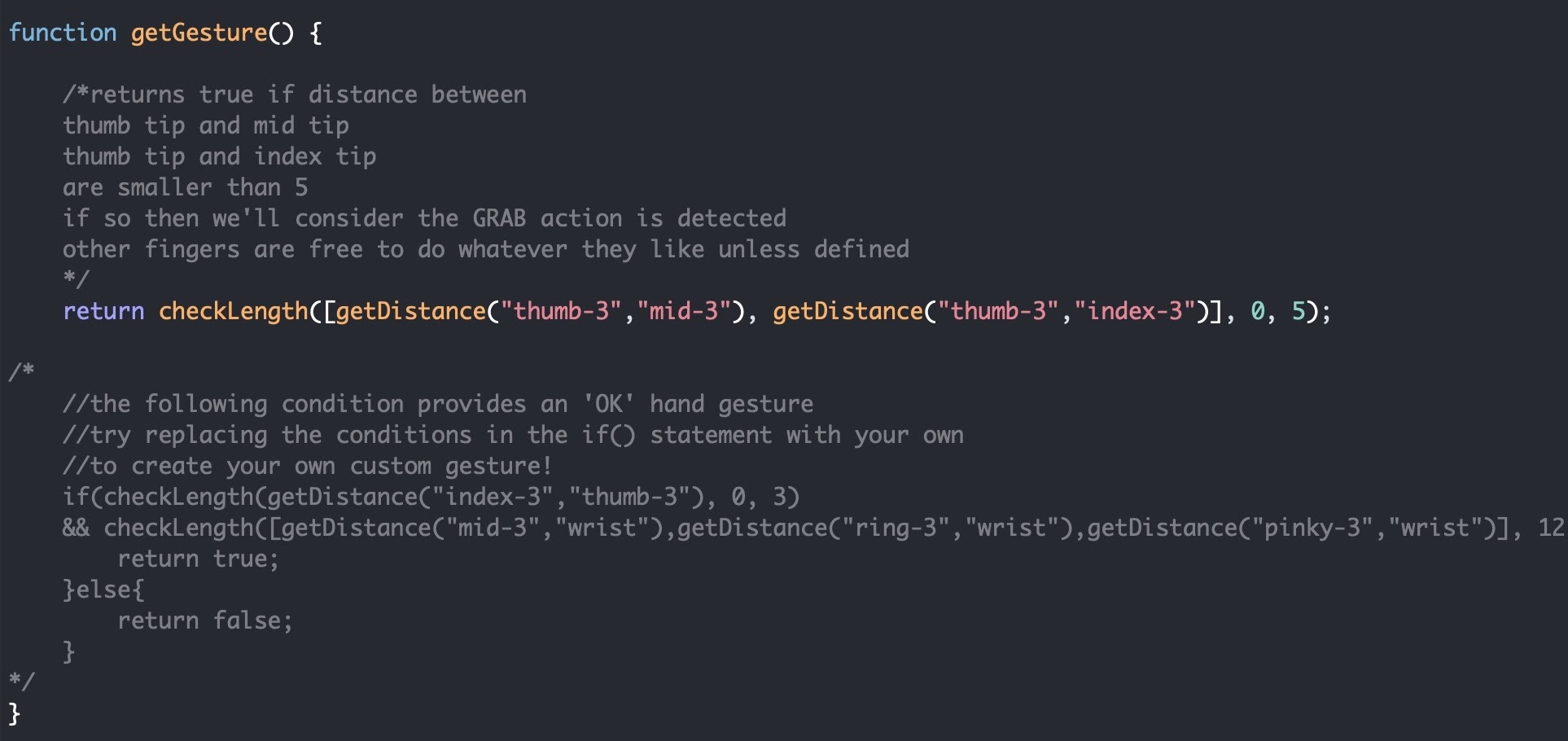
This can be an alternative to defining custom gestures with a combination of helper scripts (as done in Gesture Triggers. Feel free to uncomment other options to try other gestures with this script!
Scissors Trigger
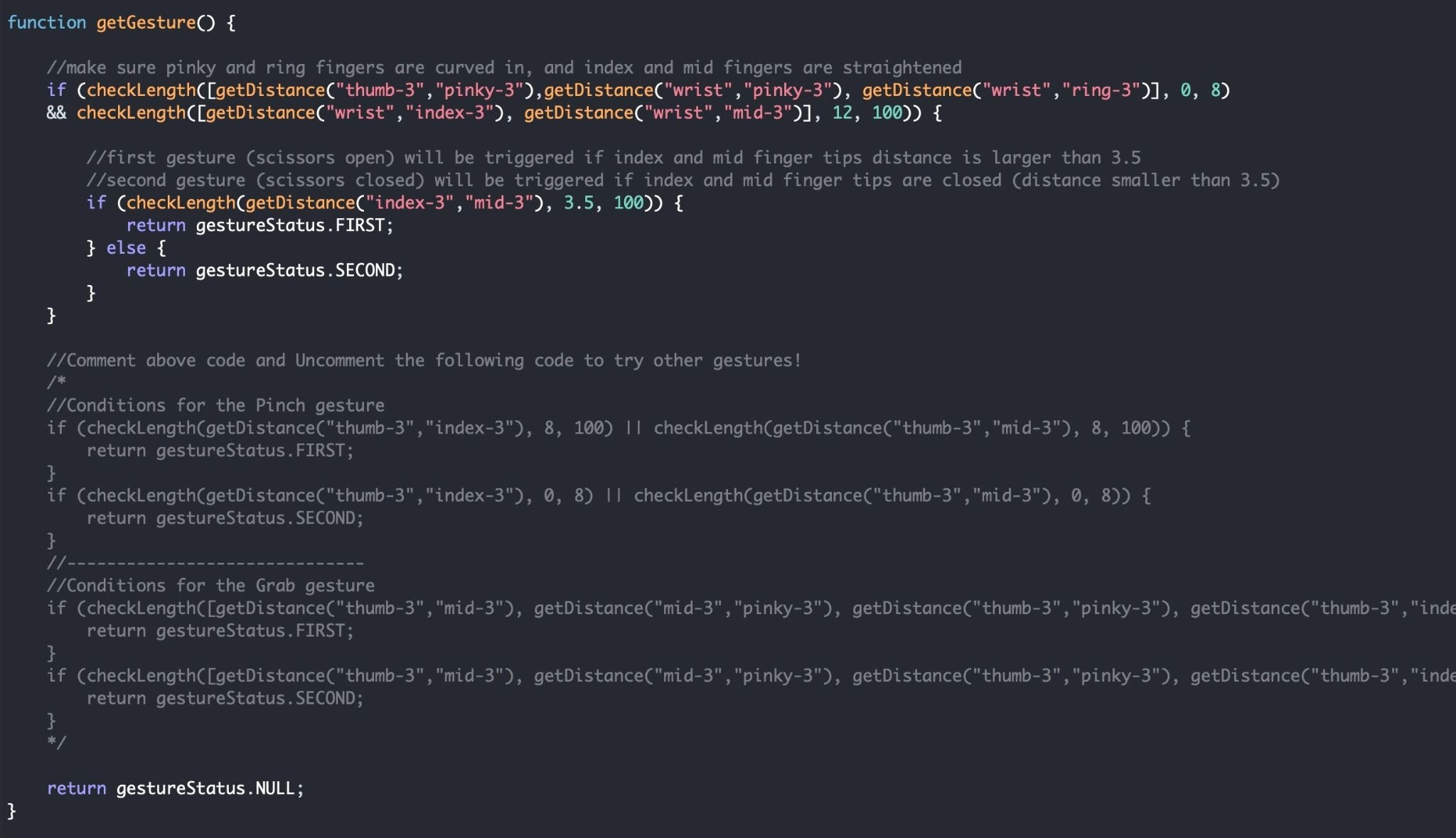
The Scissors Trigger example triggers a ‘scissor cut’ action. It uses the SequencedGestureTrigger script which works similar to the SingleGestureTrigger script mentioned above. The only difference is that SequencedGestureTrigger would trigger a sequence of gestures instead of only one.
Try checking out the getGesture() function in SequencedGestureTrigger script to see how the sequenced gesture is defined!
Rotate Spoon By Index Finger
In this example we can use our index finger to ‘stir’ this spoon in the coffee cup. This is done with the RotateObjectByFingerHelper script.
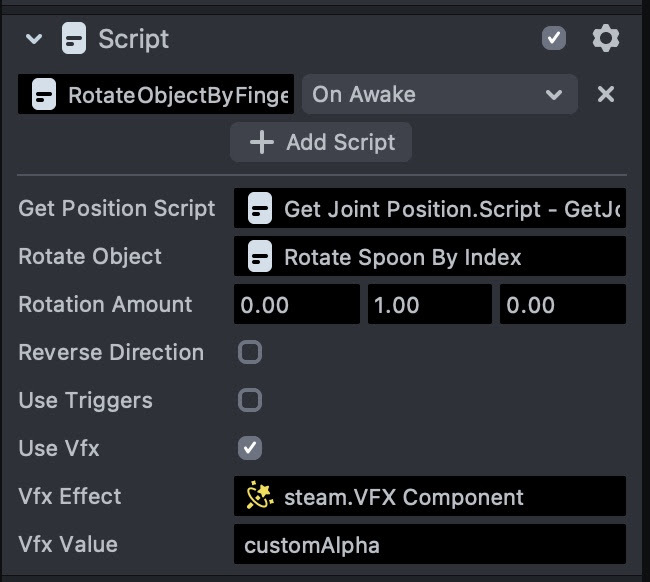
This script takes a position from the GetPositionScript, and uses it to rotate an object along the axis in RotateAmount. It also has an option to change VFX value with the same position input, as you can see in this example we’ve provided a steam effect which increases in its density when finger stirs faster.
Previewing Your Lens
You’re now ready to preview your Lens! To preview your Lens in Snapchat, follow the Pairing to Snapchat guide.
Related Guides
Please refer to the guides below for additional information: