Simple High Score
Simple High Score is available in the Lens Studio Asset Library. Import the asset to your project, create a new Orthographic camera, and place the prefab under it.
The Simple High Score asset provides you with the building blocks for creating a simple score-tracker in a game. By extension, this asset is an example of how to create Lenses that read and write to persistent storage.
The Simple High Score asset features a pair of buttons used to increment and store a score, which is displayed at the top of the screen. When the user leaves and returns to their Lens, they'll see that their "High Score" field has been saved from the last time they opened their Lens. For a more involved example of persistent storage, please refer to the more advanced High Score sample project.
Guide
Find the Simple High Score asset in the Asset Library and import it into your project. Click here to learn more about how to use assets in the Asset Library.
Once you import the asset from the Asset Library, you can find the package Simple High Score in the Asset Browser. You can right-click and select Unpack for Editing from the drop-down menu to unpack all assets stored in the bundle. Click here to learn more about Asset Packages. Once you unpack the package, you can then edit its content.
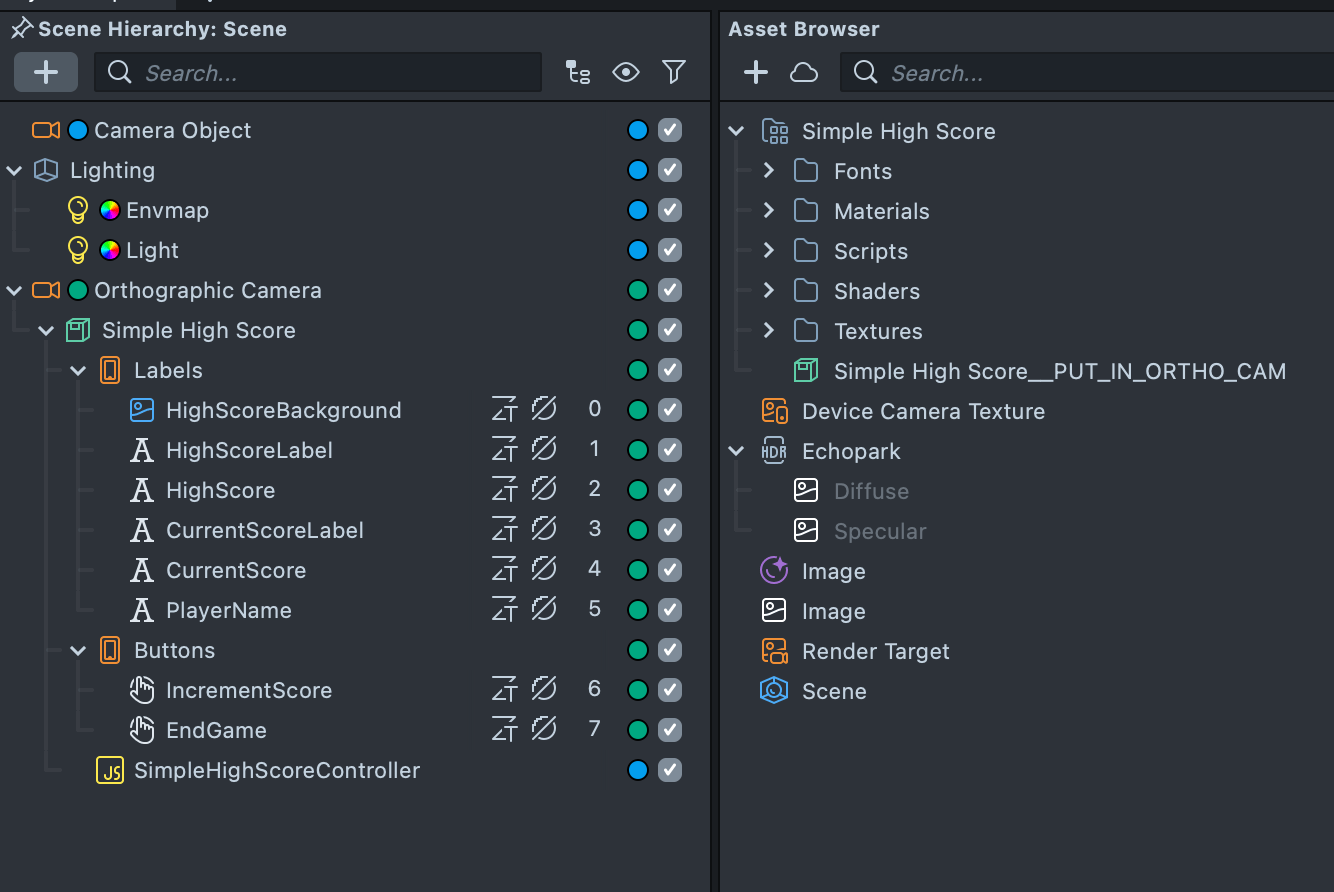
Create an Orthographic Camera by clicking the + button on the top left corner of the Scene Hierarchy panel and selecting Orthographic Camera. Then, drag the prefab Simple High Score__PUT_IN_ORTHO_CAM under the newly created Orthographic Camera to create a new Scene Object.
You'll see two buttons at the bottom of the Preview panel:
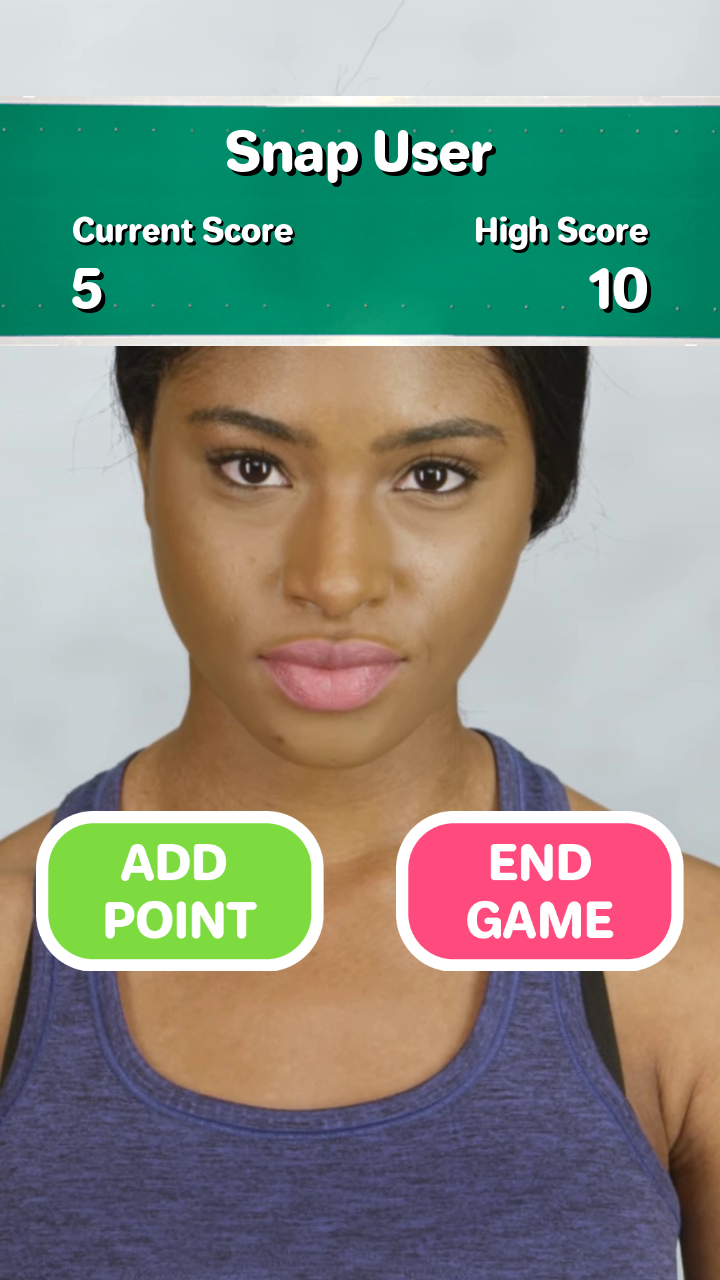
- A button labeled Add Point
- A button labeled End Game

At the top of the screen is a display that contains:
- The user's Snapchat display name, which makes use of Lens Studio's dynamic text system
- A number labeled "Current Score"
- A number labeled "High Score"
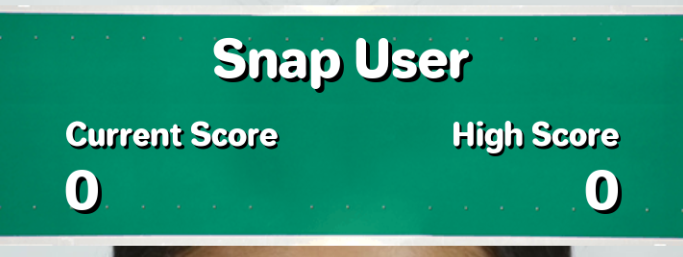
When the user presses the Add Point button, the Current Score value will increment by 1.
When the user presses the End Game button, the High Score value is set to the Current Score, and the Current Score value is set to 0.
Additionally, pressing the End Game button writes the new High Score value to persistent storage. When the user closes and reopens the Lens, the High Score value is recovered and displayed again.
To learn more about reading and writing data in Lenses, please visit the Persistent Storage guide.
Previewing Your Lens
You’re now ready to preview your Lens experience. To preview your Lens in Snapchat, follow the Pairing to Snapchat guide.