What x Are You Spinner
Spinner Lenses, such as "What ___ are you?", is a popular Lens type that allows a Snapchatter to be randomly assigned some content. For example: a "What fruit are you" spinner will randomly give the Snapchatter some content like: "orange", "apple", "peach" and so forth.
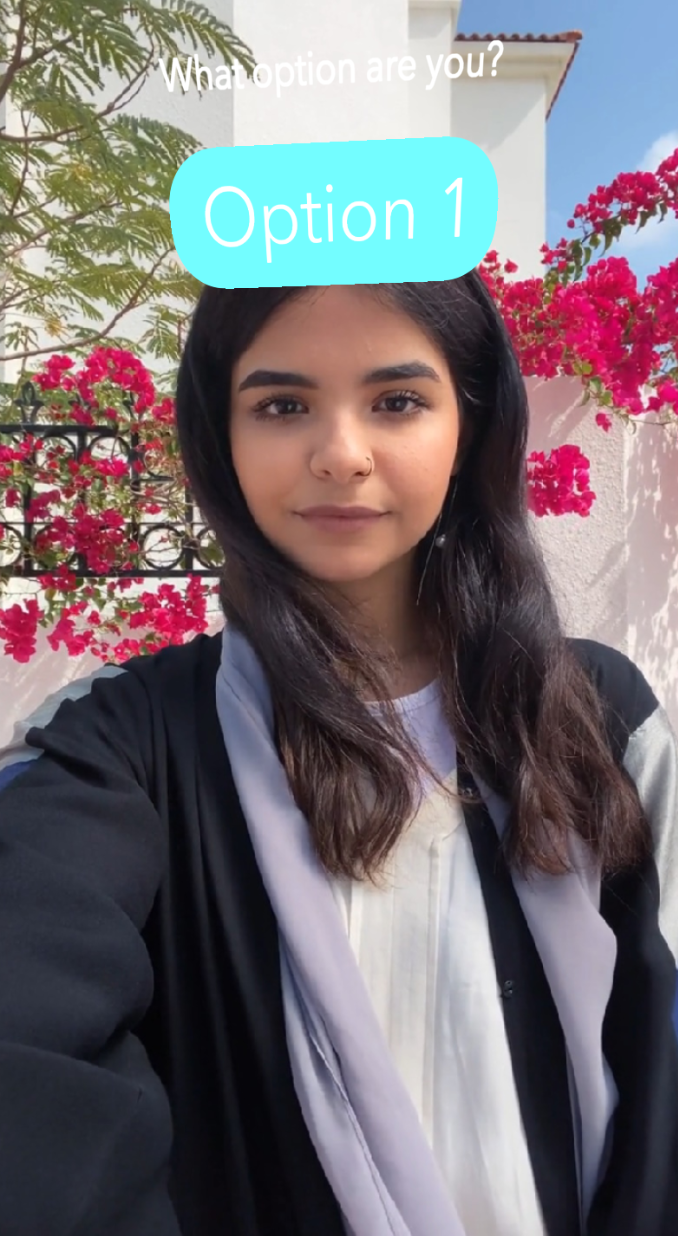
The What X Are You Spinner asset allows you to build your own unique spinner Lens by simply providing a list of words, images, colors, or a combination of them! Find the asset in the Asset Library and import it into your project. Click here to learn more about how to use assets in the Asset Library.
What x Are You Spinner Asset
Once you import the asset from Asset Library, you can find the package in the Asset Browser. Follow the instructions and drag the prefab Spinner into Scene Hierarchy under the Camera Object to create a new Scene Object.
You can right-click and select Unpack for Editing from the drop-down menu to unpack all assets stored in the bundle. Click here to learn more about Asset Packages. Once you unpack the package, you can then edit its content.
Configuring your Spinner
Preparing your spinner
To configure your spinner, select the Spinner Content object in the Scene Hierarchy panel, which contains the Spinner Controller. In the Inspector panel, you can change what your spinner displays.
There are three key placeholders that the spinner can use:
- Prompt: tells the user what the spinner is about.
- Result Image: the place where the randomly selected image will be shown.
- Result Text: the place where the randomly selected text will be shown.
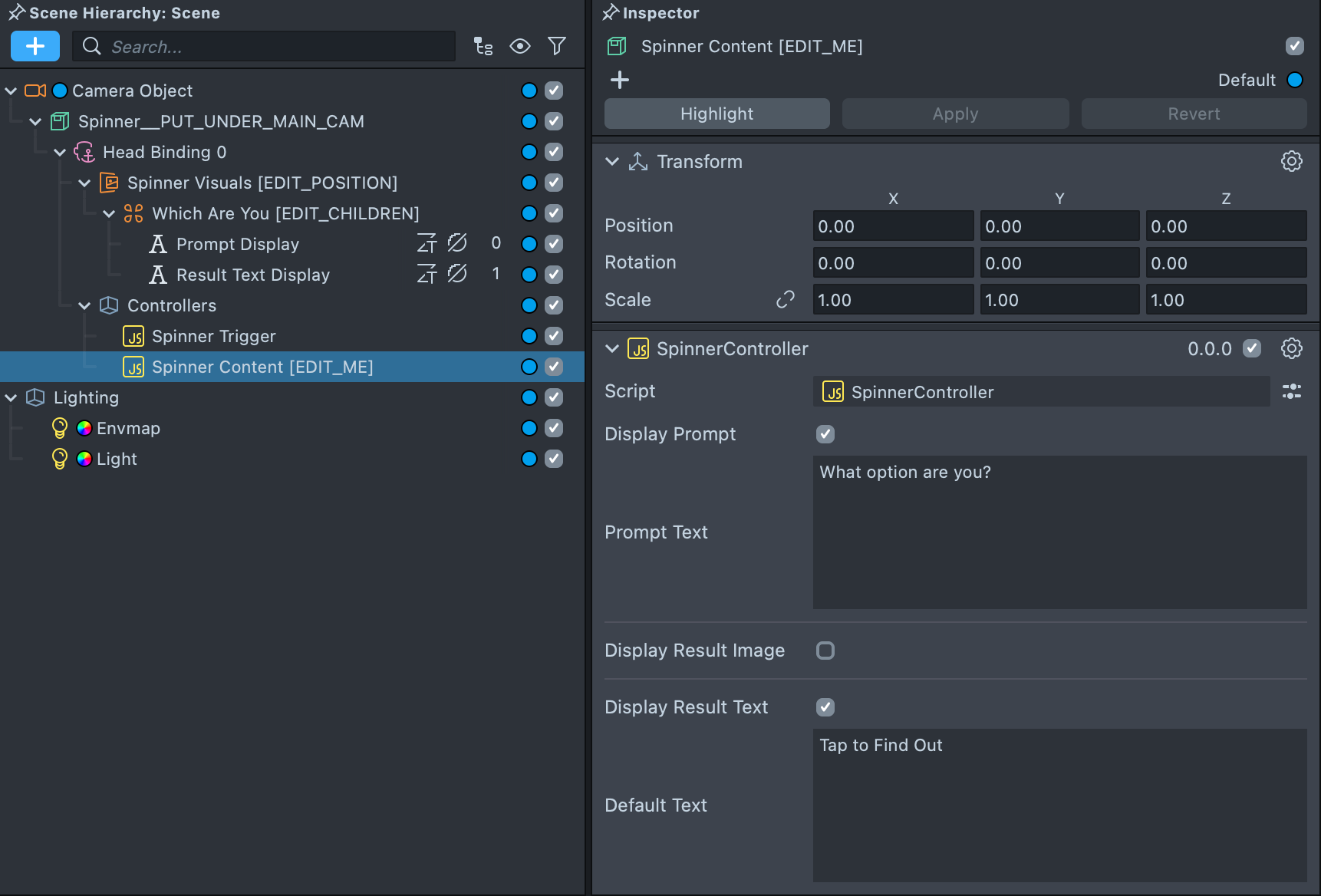
If you don't need all these placeholders, you can toggle their respective checkbox:
Adding content to your spinner
In the Content section of the Spinner Controller you can add the options that the spinner will roll through.
Press the + Add Value button to add new options.

Each option comes with a Text, Image, and Color field:
- The
Textfield will populate theResult Textplaceholder. - The
Imagefield will populate theResult Imageplaceholder. - The
Colorfield will set the background of theResult Textplaceholder.
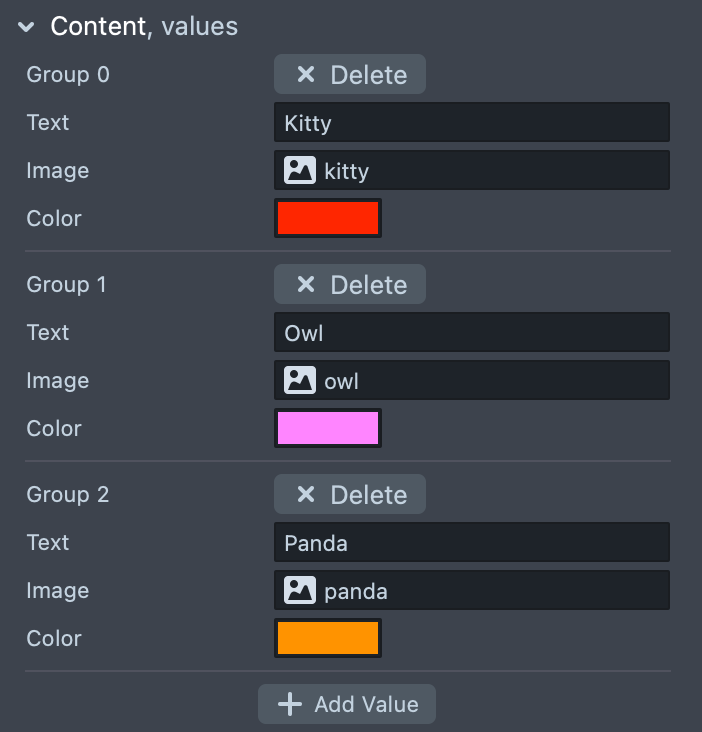
You don't need to set a value for every field, but it's best to be consistent across all your options.
Setting the background color of the Result Text field can be useful to add a background color to your image--see the Image with Background Example. Here we use a "white-space" character (such as ), to display some color.
Configuring the spinner's behavior
There are some options you can consider, depending how you want your spinner to work:
- Set Color Text BG allows you to change the
Result Text's background color based on an option'sColorfield. - Hide Prompt on Spin allows you to hide the prompt when an option is being presented to allow the user to focus on the result.

Make sure to consider whether a person receiving a Snap would get what your spinner is about, especially if you hide the prompt on spin!
Triggering the spinner
By default, the spinner runs on tap and when the user opens their mouth. You can change this in the Spinner Trigger object.
With Spinner Trigger selected in the Scene Hierarchy panel, in the Inspector panel, look for the Trigger field.
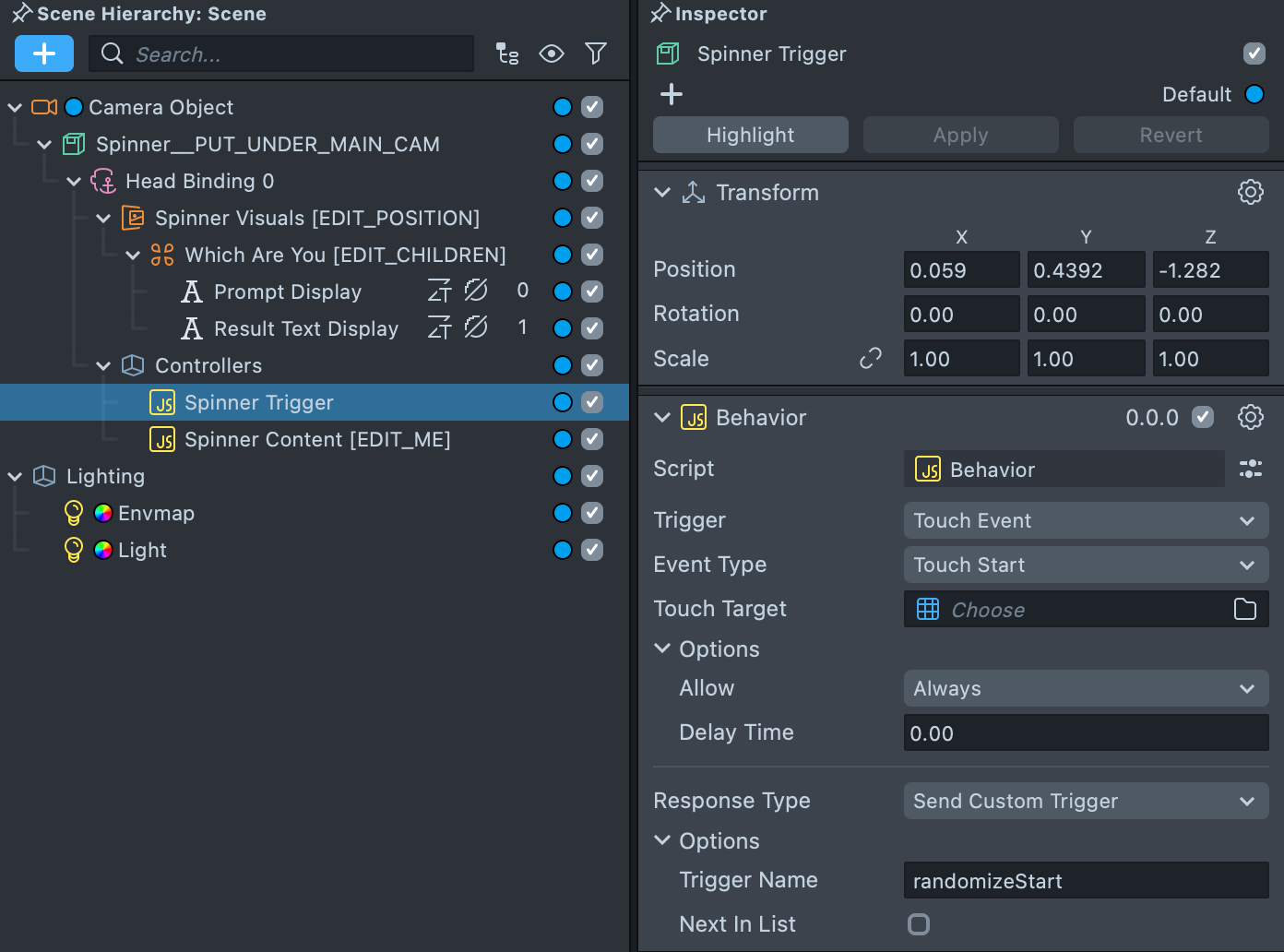
If you change the Spinner's trigger, make sure you help the user know! Press the Project Info button to choose the Hint you want your Lens to show!
Notice how there are two Behavior scripts. One for the tap event, the other for the mouth event. They both Send Custom Trigger to randomizeStart, which is actually what calls the Spinner Controller. You can add more triggers by adding another Script component and using the Behavior script.
Add Image to the Spinner
Add a Screen Image by clicking on the Which Are You [EDIT_CHILDREN] object and then select + -> Screen Image from the Scene Hierarchy panel. Enable Display Result Image checkbox and Advanced checkbox in the Spinner Controller. Attach the Screen Image to the Result Image Display field.
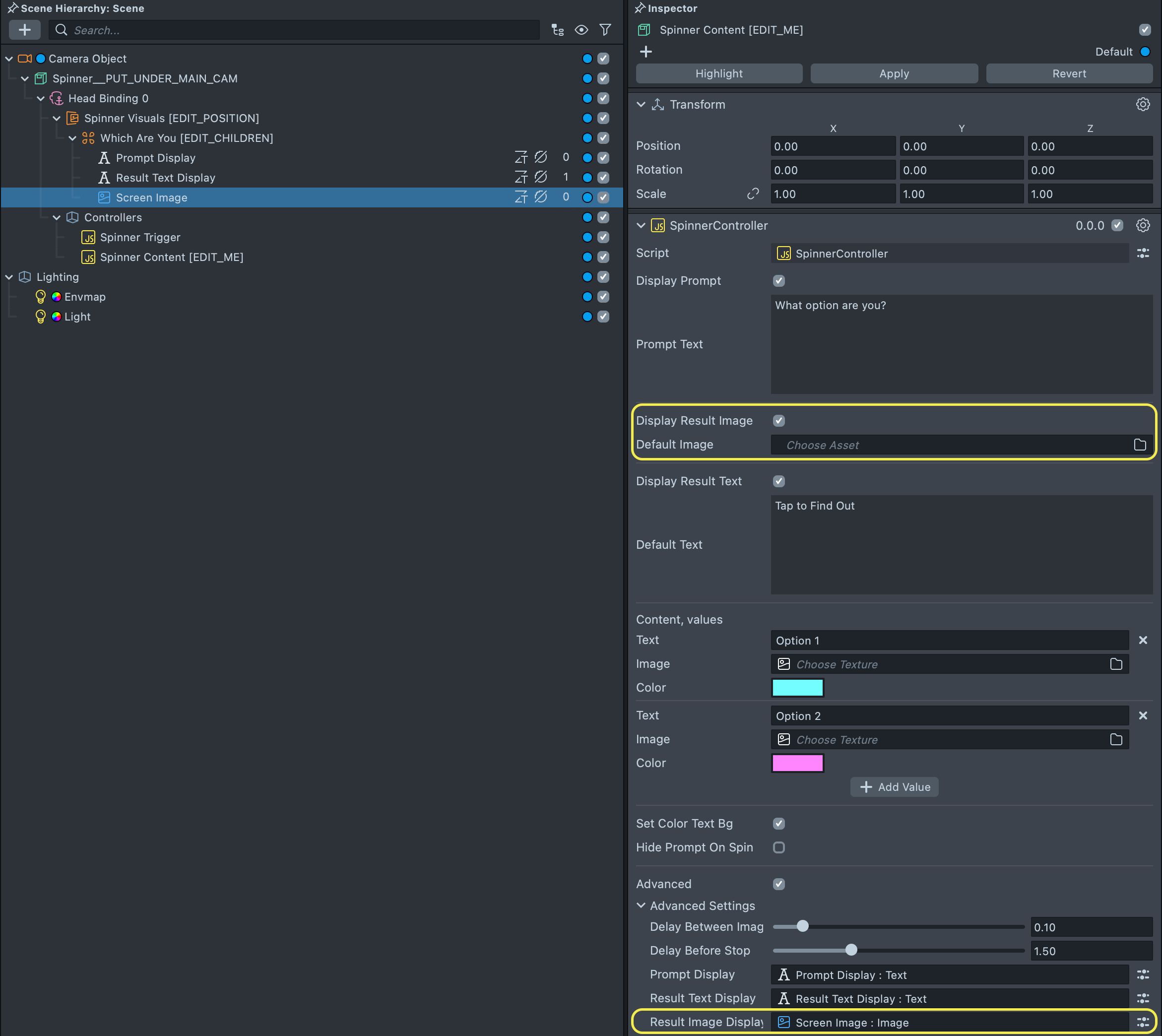
Assign texture to the Default Image field and Content Image fields.
Modifying the Look of Your Spinner
Click on the Spinner Visuals object. You can select each object to modify how the spinner looks with its' children object!
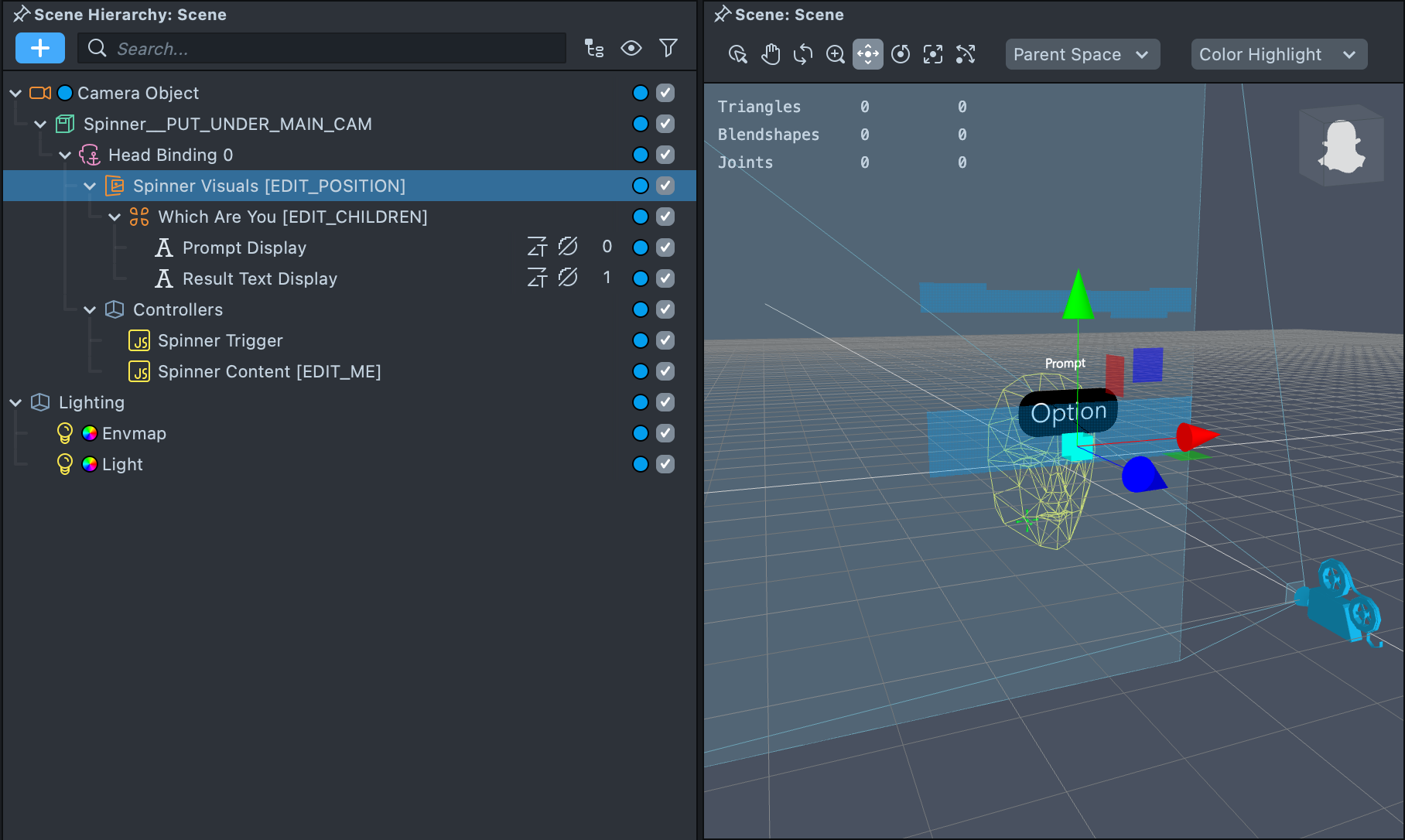
If you wanted to modify the position of the Spinner, you can select Spinner Visuals in the Scene Hierarchy panel, then in the Scene panel, you can select the move widget (w on the keyboard), and move the visual.
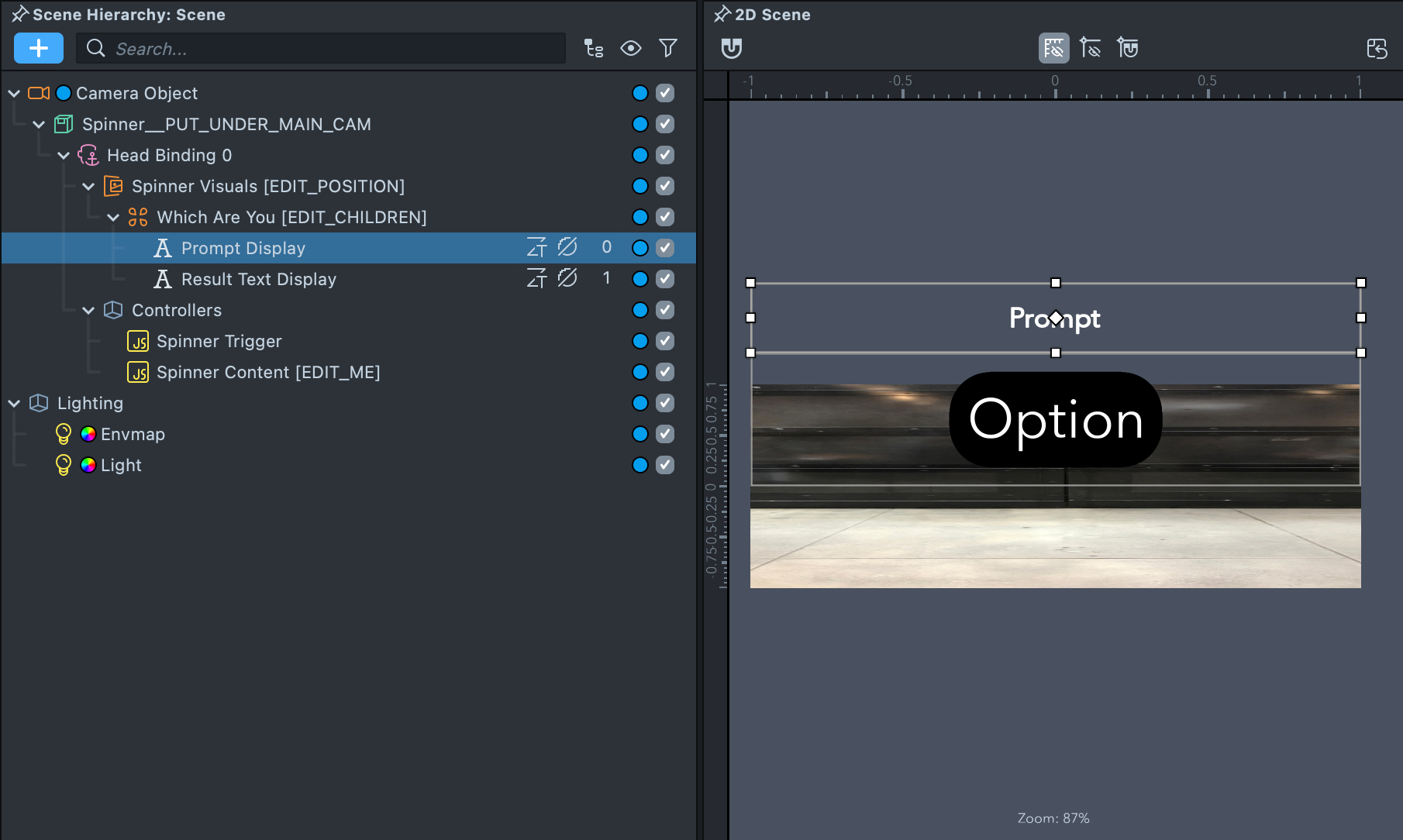
You can select the individual displays (e.g. Prompt Display) in the Scene Hierarchy panel. Double click to open 2D Scene editer. Modify its setting in the Inspector panel. For example, you can change the display's color, by clicking on the field next to the Color field.
Adding content via a script
It is also possible to add content to the spinner via a script. This is useful if you want to quickly change the data.
You can create a script:
//  @input  Component.ScriptComponent  spinnerController

script.spinnerController.promptText = 'Default  Prompt';
script.spinnerController.defaultText = 'Default  Result';
script.spinnerController.content = [
  {
    text: 'option  1',
    color: new vec4(1, 0, 0, 1),
  },
  {
    text: 'option  2',
    color: new vec4(0, 1, 0, 1),
  },
  {
    text: 'option  3',
    color: new vec4(0, 0, 1, 1),
  },
];

//  Update  the  visuals  of  the  spinner  to  match  the  new  content
script.spinnerController.initVisuals();
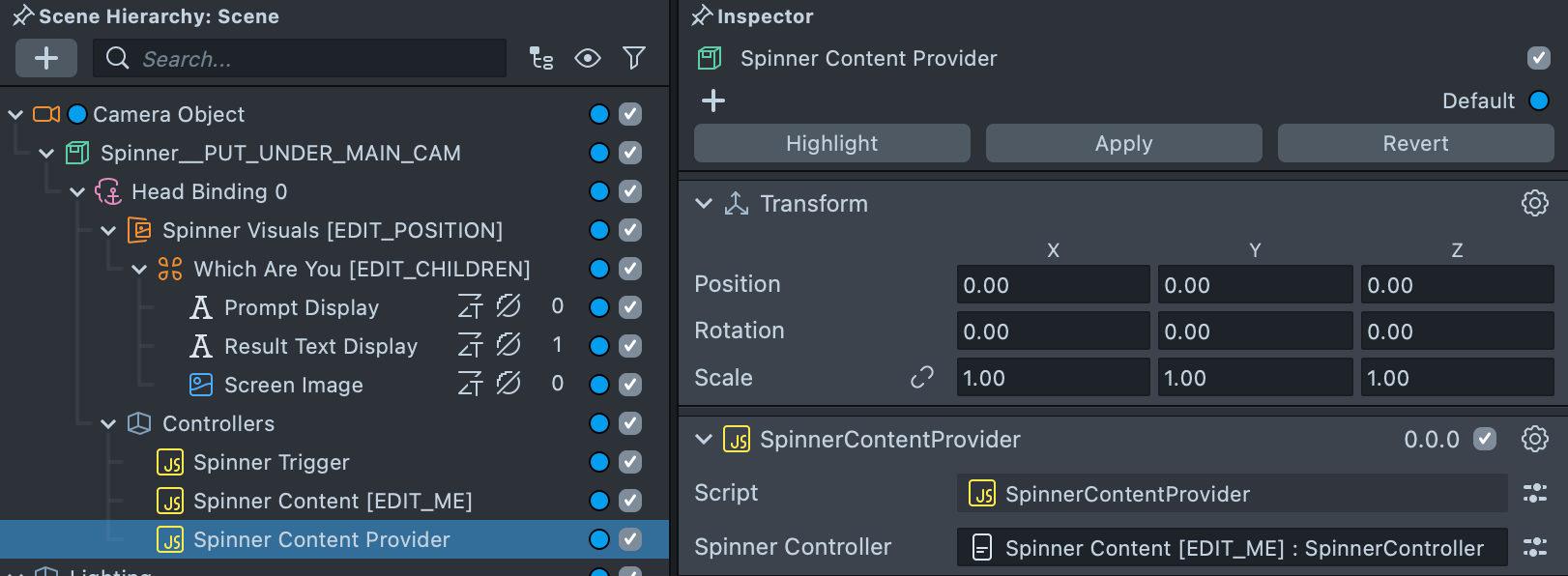
Then, add it to an object, and put a reference to the Spinner Controller you are using.
Previewing Your Lens
You’re now ready to preview your Lens! To preview your Lens in Snapchat, follow the Pairing to Snapchat guide.