Face Mask Generator
The Face Mask plugin allows you to generate a face texture from a text prompt and instantly apply it to a model. The plugin automatically creates the Face Mask component, making the process fast and effortless.
Getting Started
-
Navigate to the
Lens Studio AIoption in the top right corner of the Lens Studio. Then, click on theGenAI Suitetab in the sidebar.
-
On the
GenAI Suitetab, you may need to scroll down to find Face Mask.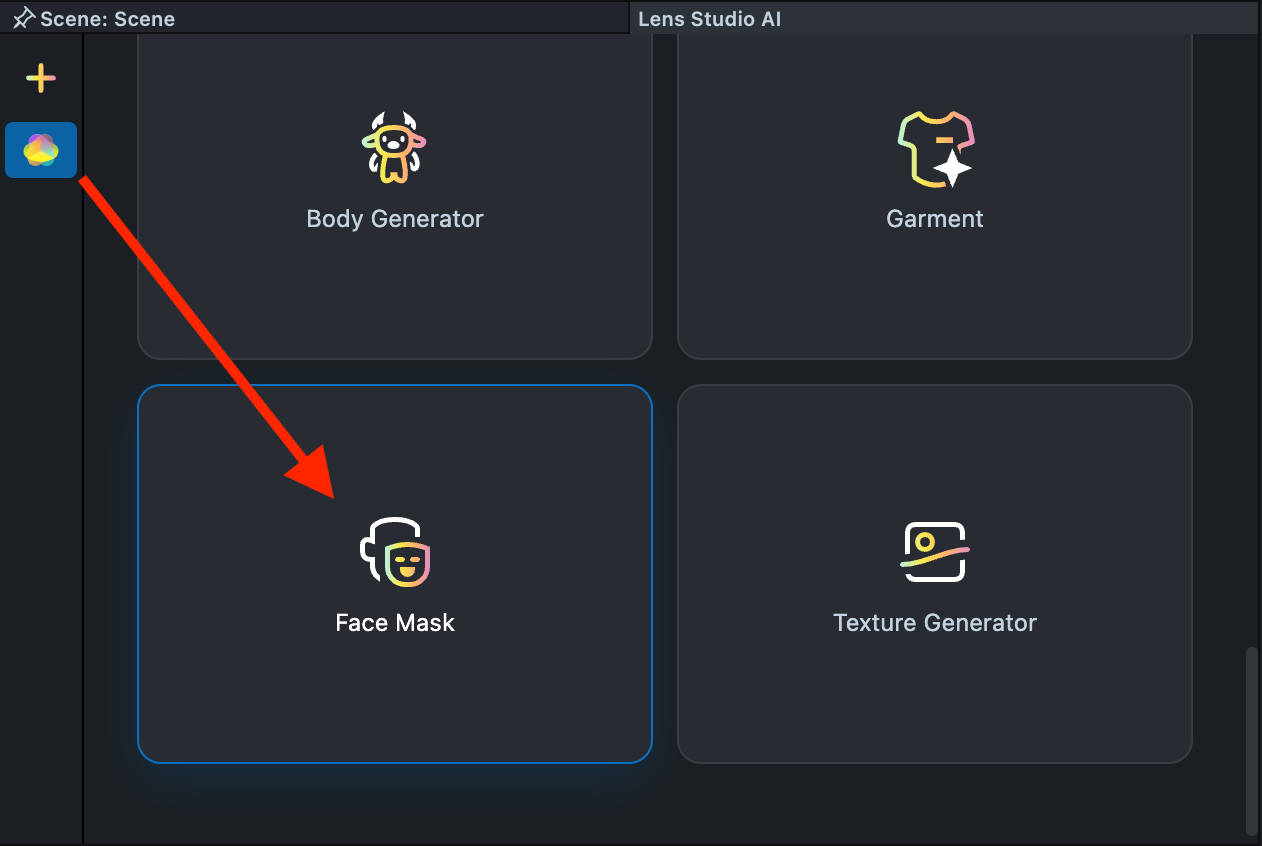
Effect Creation flow
-
Click the
Surprise mebutton to try one of the default prompts and get familiar with the model.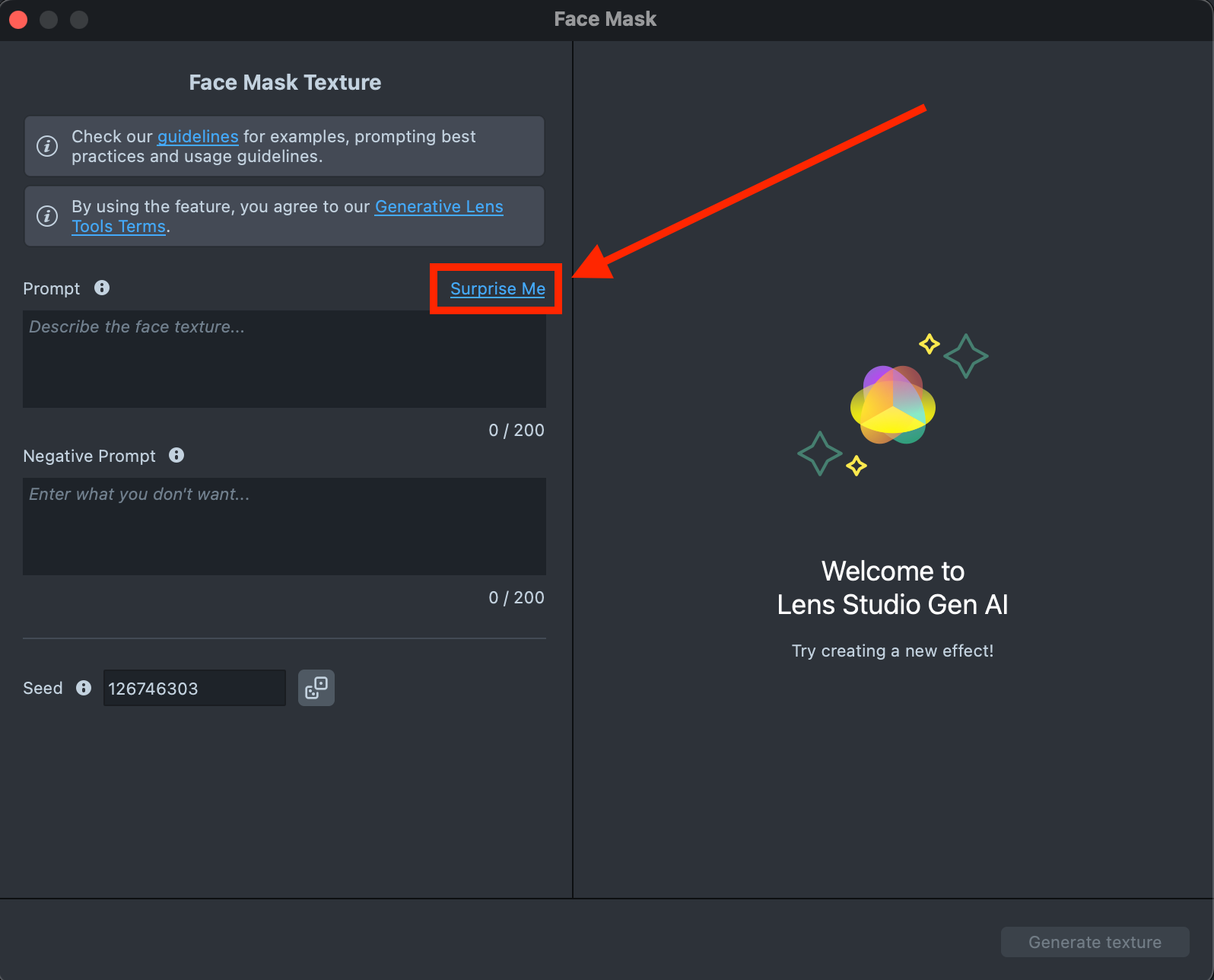
-
If you are ready to use your own prompt, enter a description of the Face Mask you’d like to generate in the
Prompttext field (up to 200 characters).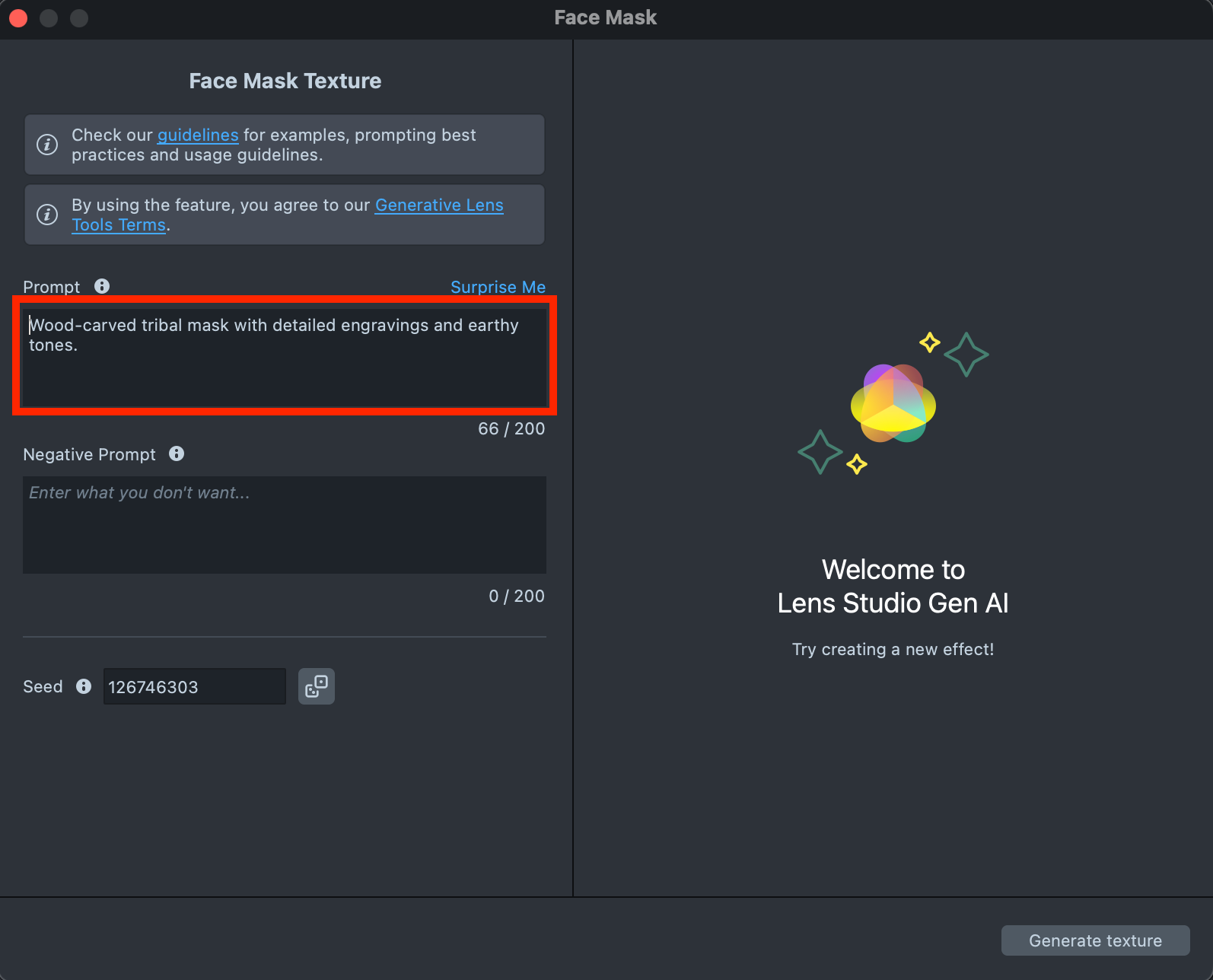
-
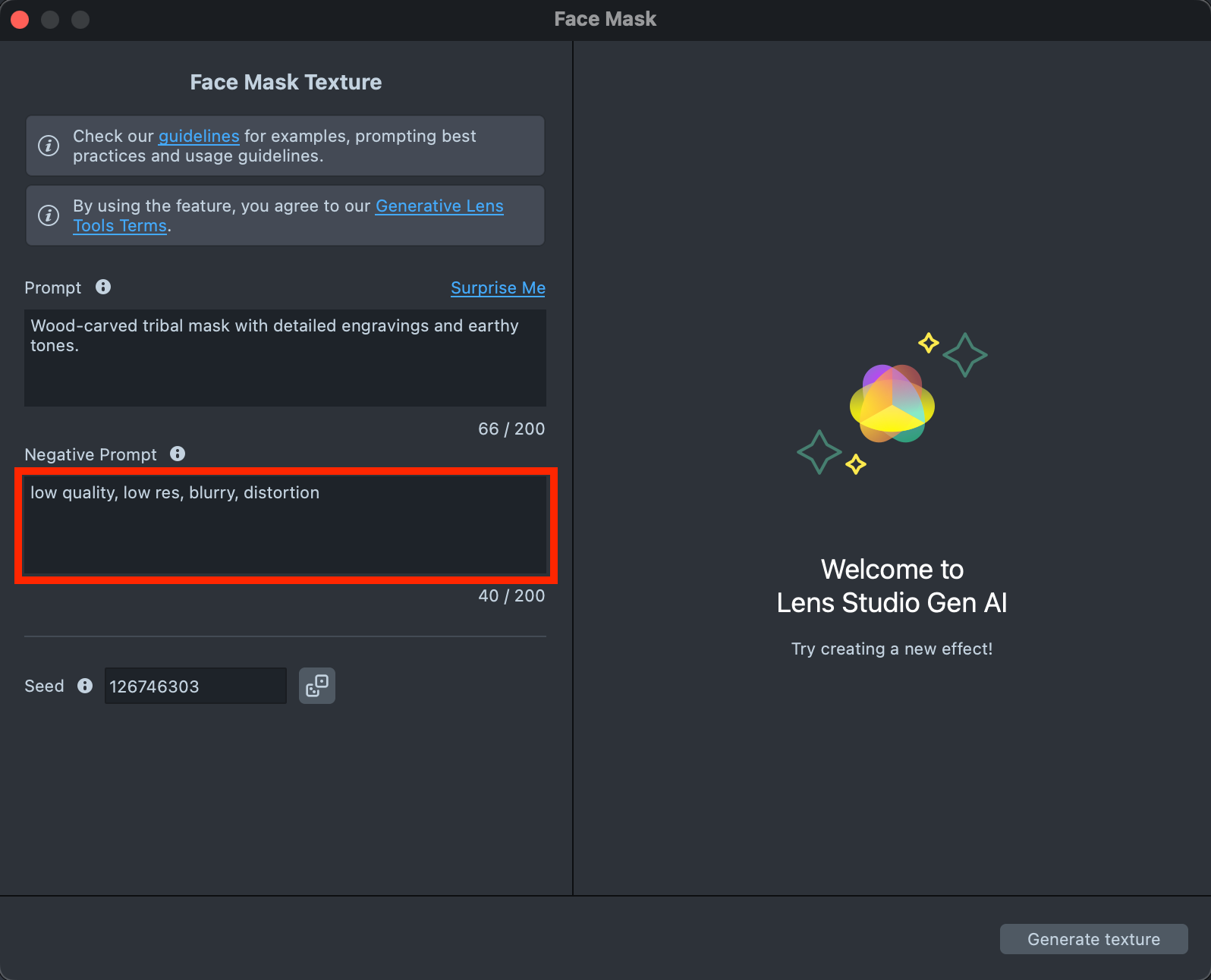
The Negative Prompt field is optional and allows you to list elements you don’t want to appear on your mask. This can include both visual aspects (such as specific colors, shapes, or styles) and texture-quality issues you’d like to avoid.
-
When your prompt is ready, press the
Generate texturebutton to generate the garment.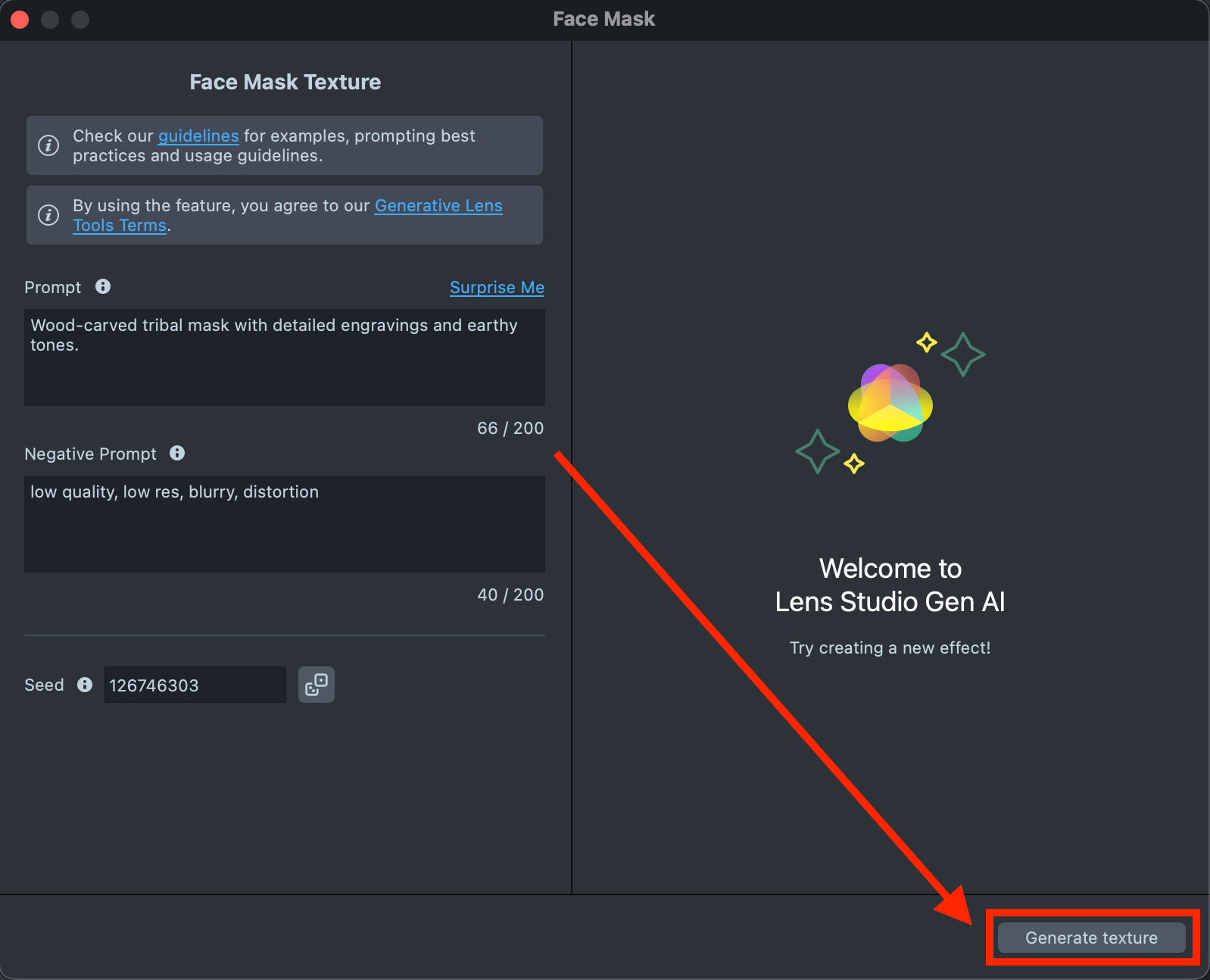
-
If the preview doesn’t match your expectations, try adjusting your prompts or changing the Seed to explore different visual results. When you’re ready, click
Regenerateto create a new preview.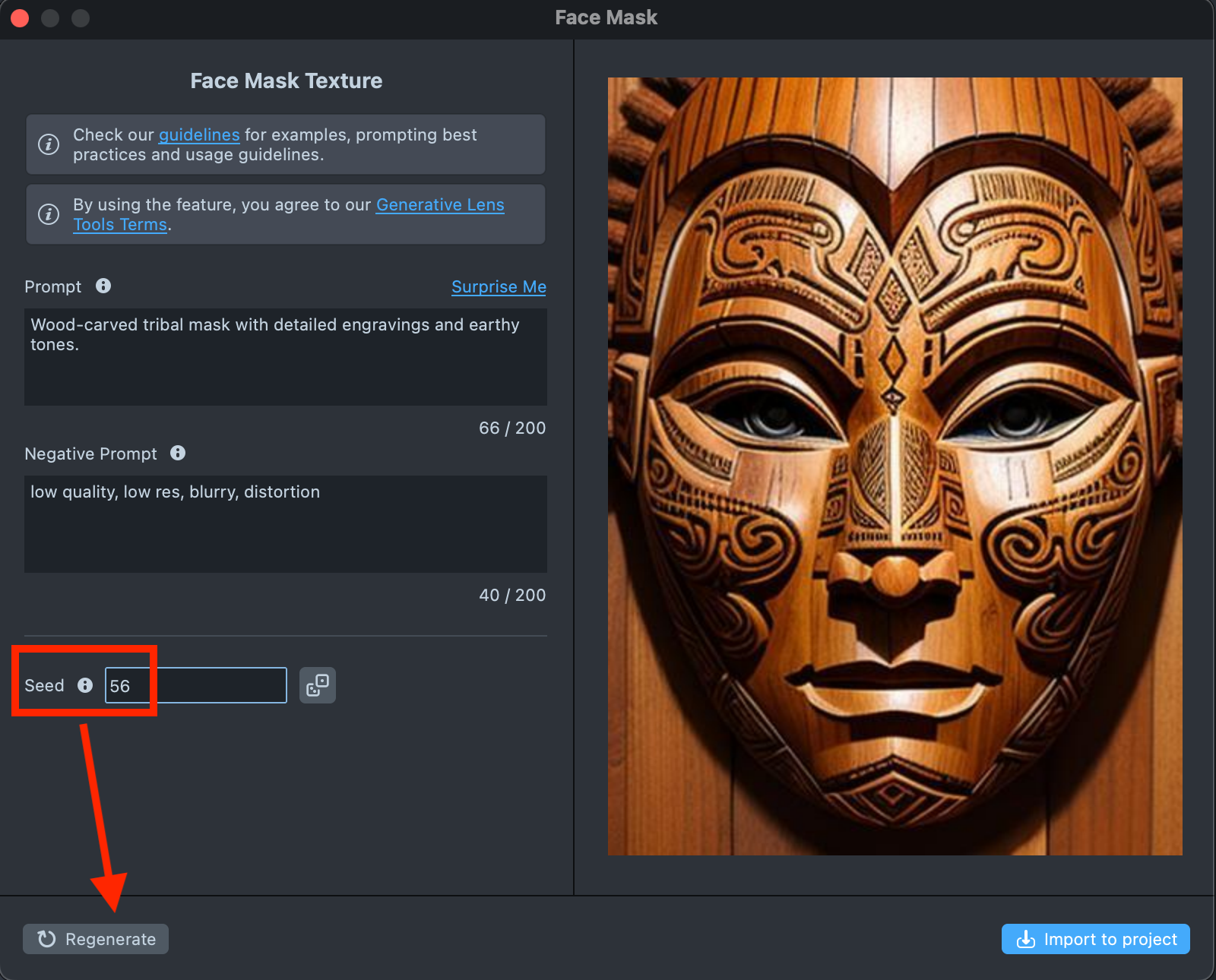
-
Happy with the result? Great! Click
Import to projectto continue building your Lens.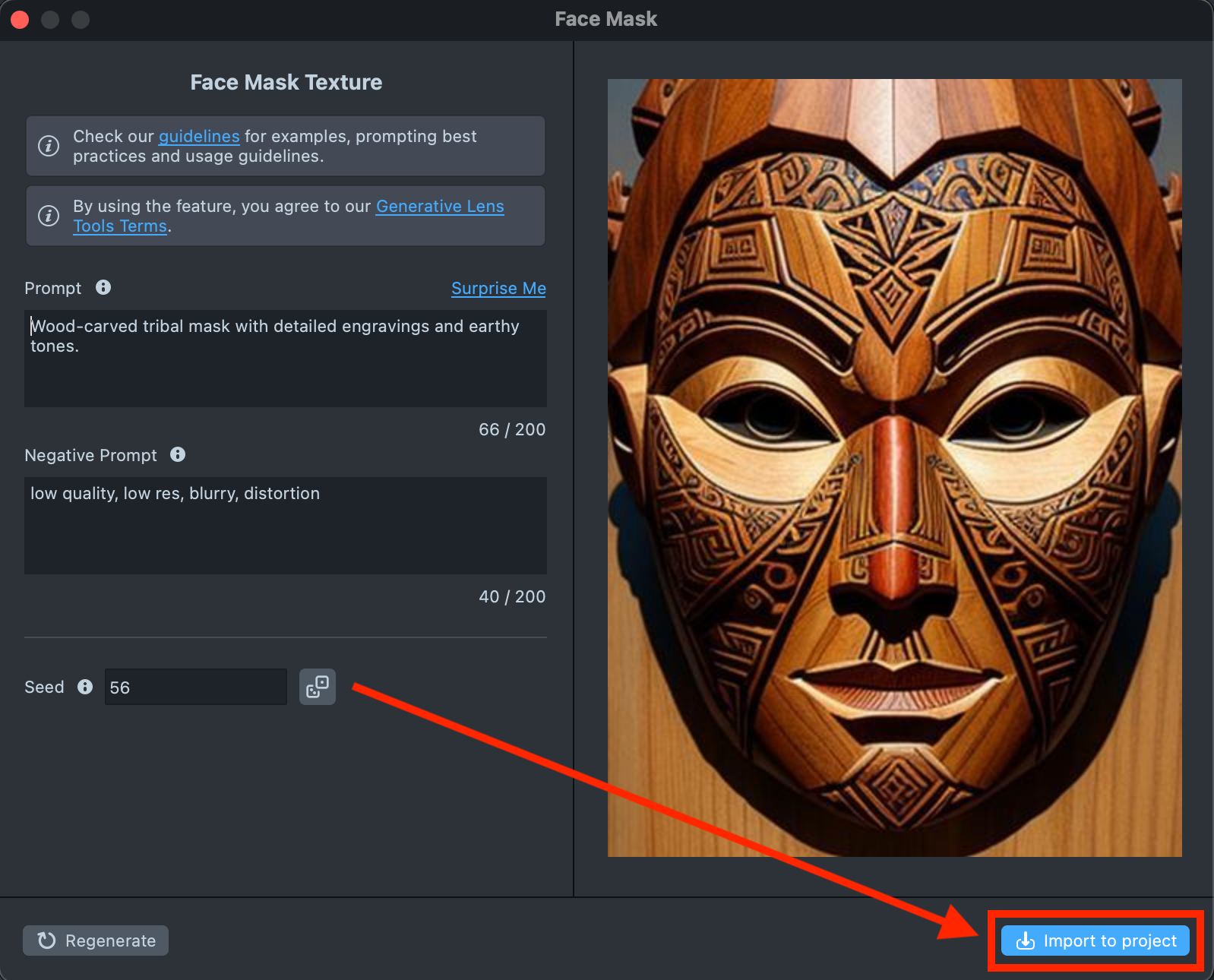
-
When you’re satisfied with the result, save your project and push the Lens for testing on Snapchat. See the Pairing to Snapchat guide to test your Lens on a device, and the Publishing guide to learn more about sharing your creation.
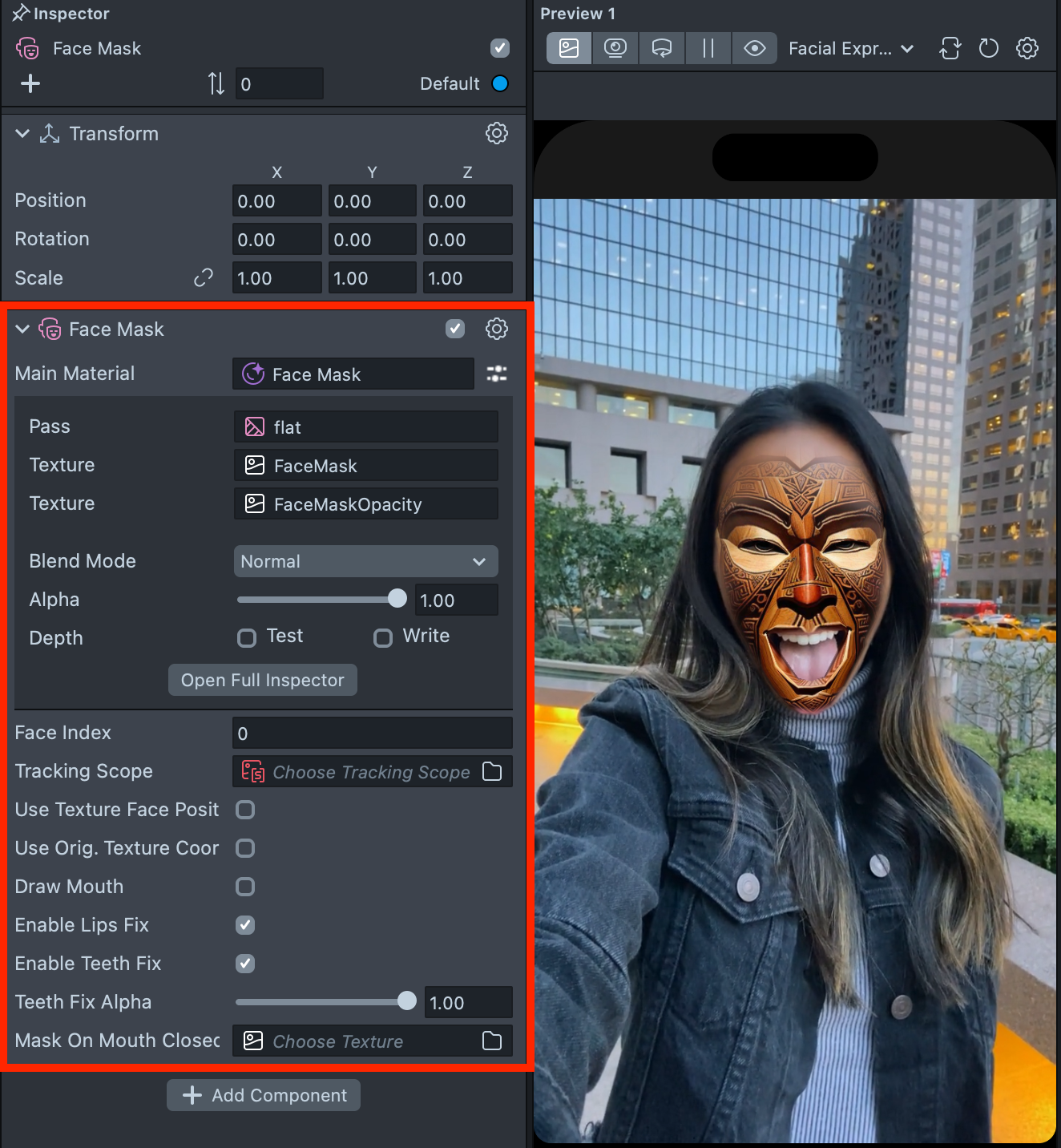
Visit the Face Mask Effect page for an overview of the effect and detailed information about the available Face Mask Component settings.