
Realtime
This guide will show you how to use Realtime. Realtime is a globally distributed service that enables low-latency messaging between clients via Broadcast, and cross-client state synchronization via Presence.
Before proceeding, first set up your project as per the Getting Started guide.
For full reference documentation refer to the Snap Cloud documentation site.
Subscribe to a Channel
Realtime operates by broadcasting and subscribing to channels. We'll start by configuring our Lens to listen to a channel called test-channel. To do this, add the following function to the script from Getting Started:
- TypeScript
- JavaScript
async testRealtime() {
    let broadcastChannel = this.client.channel('test-channel');
    broadcastChannel.on("broadcast", { event: "test-event" }, (msg) => {
        print("New message: " + JSON.stringify(msg));
    })
    .subscribe(async (status) => {
        console.log(`Broadcast channel status: ${status}`);
        if (status === "SUBSCRIBED") {
            print("Subscribed to channel!");
        } else if (status === "CLOSED" || status === "CHANNEL_ERROR" || status === "TIMED_OUT") {
            print("Channel closed");
        }
    });
}
async function testRealtime() {
  let broadcastChannel = client.channel('test-channel');
  broadcastChannel
    .on('broadcast', { event: 'test-event' }, function (msg) {
      print('New message: ' + JSON.stringify(msg));
    })
    .subscribe(async function (status) {
      console.log('Broadcast channel status: ' + status);
      if (status === 'SUBSCRIBED') {
        print('Subscribed to channel!');
      } else if (
        status === 'CLOSED' ||
        status === 'CHANNEL_ERROR' ||
        status === 'TIMED_OUT'
      ) {
        print('Channel closed');
      }
    });
}
This method subscribes to a channel named test-channel and prints out any message it receives that is of type test-event. Invoke this method after user login:
- TypeScript
- JavaScript
async initSupabase() {
    const options = {
      realtime: {
      // Temporary fix due to a known alpha limitation, set the heartbeatIntervalMs to 2500
      heartbeatIntervalMs: 2500
     }
    };
    this.client = createClient(this.supabaseProject.url, this.supabaseProject.publicToken, options)
    if (this.client) {
        await this.signInUser();
        this.testRealtime();   // Add this line
    }
}
async function initSupabase() {
  const options = {
    realtime: {
      // Temporary fix due to a known alpha limitation, set the heartbeatIntervalMs to 2500
      heartbeatIntervalMs: 2500,
    },
  };
  client = createClient(
    script.supabaseProject.url,
    script.supabaseProject.publicToken,
    options
  );
  if (client) {
    await signInUser();
    testRealtime(); // Add this line
  }
}
Broadcast From Dashboard
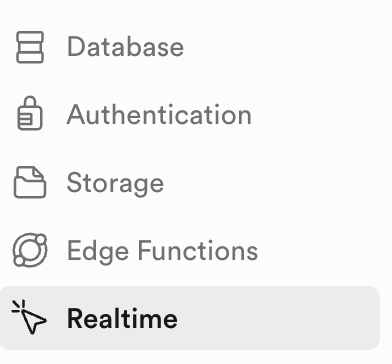
To simply test this, we'll broadcast a message manually from the dashboard. Open the Snap Cloud Dashboard and click on the Realtime tab in the left sidebar.
Click on Join a channel, type in test-channel, and click Listen to channel.
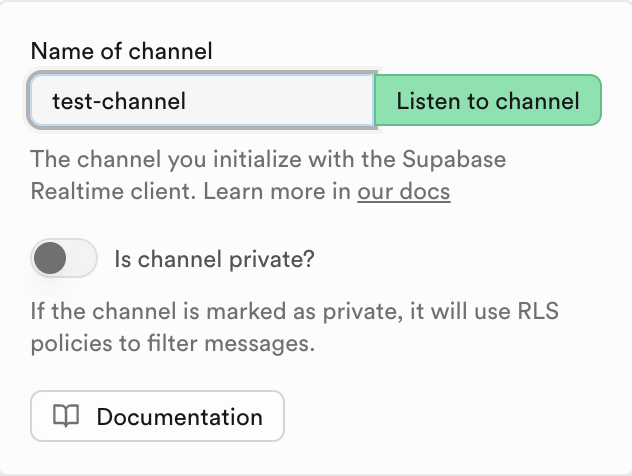
You should now see a realtime view of all incoming messages on the channel. Broadcast a message yourself by clicking Broadcast a message. Under Message name type "test-event", and include anything you'd like for the message payload. Send the message by clicking Confirm.
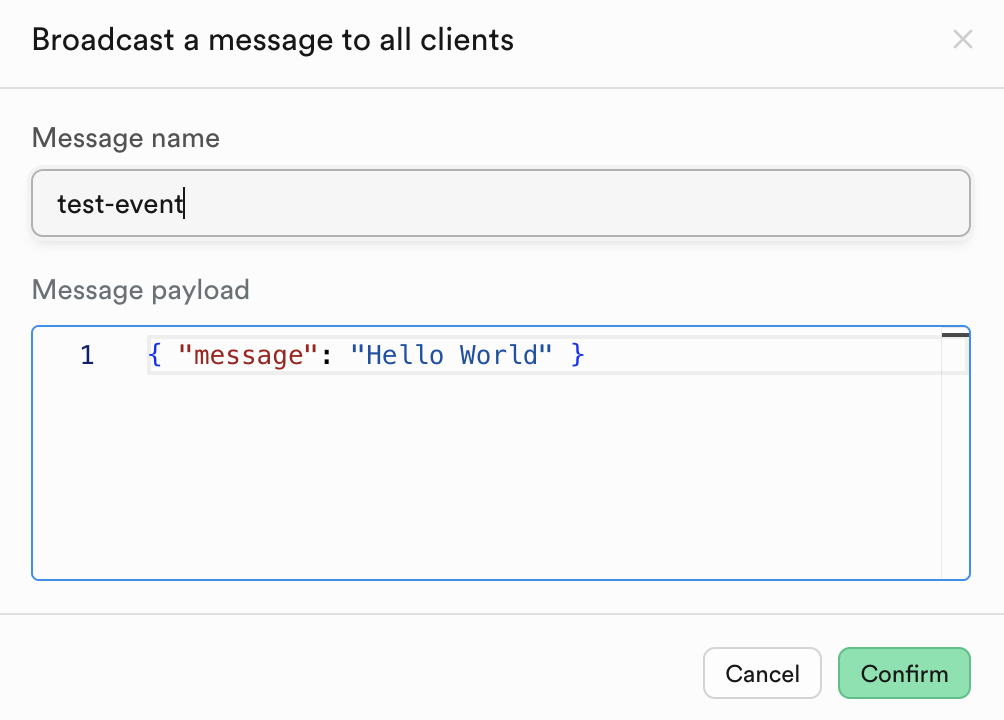
The message will be sent, and you should see it appear in your Lens Studio Logger panel.

Configuring Realtime for Database Changes
When setting up realtime subscriptions for database changes, it's good practice to enable realtime on your database tables. In the Table Editor, you can enable this by checking "Broadcast changes on this table to authorized subscribers" when creating or editing a table.
This setting allows your Lens to receive automatic notifications whenever data in the table changes (inserts, updates, or deletes). For the following examples, you can use the test-table that was created in the Databases guide.
Complete Realtime Example
The following complete example demonstrates both types of realtime functionality:
- Database Changes - Subscribe to table changes (INSERT, UPDATE, DELETE)
- Broadcast Messages - Send and receive custom messages between clients
- TypeScript
- JavaScript
import {
  createClient,
  SupabaseClient,
  RealtimeChannel,
} from 'SupabaseClient.lspkg/supabase-snapcloud';

@component
export class RealtimeExample extends BaseScriptComponent {
  @input
  @hint('Supabase Project asset from Asset Browser')
  supabaseProject: SupabaseProject;

  @input
  @hint('Table name to subscribe to for realtime updates')
  tableName: string = 'test_table';

  @input
  @hint('Channel name for realtime subscription')
  channelName: string = 'db-changes';

  private client: SupabaseClient;
  private uid: string;
  private channel: RealtimeChannel;

  onAwake() {
    this.createEvent('OnStartEvent').bind(() => {
      this.onStart();
    });
  }

  onStart() {
    this.initSupabase();
  }

  async initSupabase() {
    this.log('Initializing Supabase client...');

    const options = {
      realtime: {
        heartbeatIntervalMs: 2500,
      },
    };

    this.client = createClient(
      this.supabaseProject.url,
      this.supabaseProject.publicToken,
      options
    );

    if (this.client) {
      this.log('Client created successfully');
      await this.signInUser();

      if (this.uid) {
        this.log('Setting up realtime subscription...');
        await this.setupRealtimeSubscription();
      }
    }
  }

  async signInUser() {
    this.log('Signing in user...');

    const { data, error } = await this.client.auth.signInWithIdToken({
      provider: 'snapchat',
      token: '',
    });

    if (error) {
      this.log('Sign in error: ' + JSON.stringify(error));
    } else {
      const { user, session } = data;
      this.uid = JSON.stringify(user.id).replace(/^"(.*)"$/, '$1');
      this.log('User authenticated');
    }
  }

  async setupRealtimeSubscription() {
    this.log('--- REALTIME EXAMPLE START ---');
    this.log('Setting up two types of realtime:');
    this.log('1. Database changes (postgres_changes)');
    this.log('2. Broadcast messages (broadcast)');

    this.channel = this.client
      .channel(this.channelName)
      .on(
        'postgres_changes',
        {
          event: '*',
          schema: 'public',
          table: this.tableName,
        },
        (payload) => {
          this.handleRealtimeEvent(payload);
        }
      )
      .on('broadcast', { event: 'test-event' }, (msg) => {
        this.log('--- BROADCAST MESSAGE RECEIVED ---');
        this.log('Message: ' + JSON.stringify(msg.payload));
        this.log('--- END BROADCAST ---');
      });

    this.channel.subscribe((status) => {
      this.log('Channel status: ' + status);

      if (status === 'SUBSCRIBED') {
        this.log('Realtime channel active');
        this.log('Listening for both database changes and broadcasts');

        this.testRealtimeFeatures();
      } else if (
        status === 'CLOSED' ||
        status === 'CHANNEL_ERROR' ||
        status === 'TIMED_OUT'
      ) {
        this.log('Channel closed or error');
      }
    });
  }

  async testRealtimeFeatures() {
    await this.delay(1000);
    this.log('Testing broadcast message...');
    await this.sendBroadcastMessage('Hello from Lens Studio!');

    await this.delay(2000);
    this.log('Testing database change detection...');
    await this.testRealtimeWithInsert();
  }

  async testRealtimeWithInsert() {
    await this.delay(2000);

    this.log('Inserting test record to trigger realtime event...');

    const testMessage = 'Realtime test ' + Date.now();

    const { data, error } = await this.client
      .from(this.tableName)
      .insert([
        {
          user_id: this.uid,
          message: testMessage,
        },
      ])
      .select();

    if (error) {
      this.log('Insert failed: ' + JSON.stringify(error));
    } else {
      this.log('Test record inserted - waiting for realtime event...');
    }
  }

  handleRealtimeEvent(payload: any) {
    const eventType = payload.eventType || 'UNKNOWN';
    this.log('--- REALTIME EVENT RECEIVED ---');
    this.log('Event type: ' + eventType);

    if (payload.new) {
      this.log('New data:');
      this.log('  ID: ' + (payload.new.id || 'N/A'));
      this.log('  Message: ' + (payload.new.message || 'N/A'));
      this.log('  User ID: ' + (payload.new.user_id || 'N/A'));
    }

    if (payload.old) {
      this.log('Old data:');
      this.log('  ID: ' + (payload.old.id || 'N/A'));
    }

    this.log('--- END EVENT ---');
  }

  async sendBroadcastMessage(message: string) {
    if (!this.channel) {
      this.log('Channel not initialized');
      return;
    }

    this.log('Sending broadcast: ' + message);

    this.channel.send({
      type: 'broadcast',
      event: 'test-event',
      payload: {
        message: message,
        user_id: this.uid,
        timestamp: Date.now(),
      },
    });

    this.log('Broadcast sent successfully');
  }

  private delay(ms: number): Promise<void> {
    return new Promise((resolve) => {
      const delayedEvent = this.createEvent('DelayedCallbackEvent');
      delayedEvent.bind(() => {
        resolve();
      });
      delayedEvent.reset(ms / 1000);
    });
  }

  onDestroy() {
    this.log('Cleaning up realtime subscriptions...');

    if (this.client) {
      this.client.removeAllChannels();
    }
  }

  private log(message: string) {
    print('[RealtimeExample] ' + message);
  }
}
// Import Supabase client
const createClient =
  require('SupabaseClient.lspkg/supabase-snapcloud').createClient;

//@input Asset.SupabaseProject supabaseProject {"hint":"Supabase Project asset from Asset Browser"}
//@input string tableName = "test_table" {"hint":"Table name to subscribe to for realtime updates"}
//@input string channelName = "db-changes" {"hint":"Channel name for realtime subscription"}

/**
 * Realtime Example (JavaScript version)
 * Demonstrates realtime subscriptions and broadcasts
 * - Database change subscriptions (postgres_changes)
 * - Broadcast messages
 */

var RealtimeExampleJS = function () {
  this.client = null;
  this.uid = null;
  this.channel = null;

  this.onAwake = function () {
    script.createEvent('OnStartEvent').bind(() => {
      this.onStart();
    });
  };

  this.onStart = function () {
    this.initSupabase();
  };

  this.initSupabase = async function () {
    this.log('Initializing Supabase client...');

    const options = {
      realtime: {
        heartbeatIntervalMs: 2500,
      },
    };

    this.client = createClient(
      script.supabaseProject.url,
      script.supabaseProject.publicToken,
      options
    );

    if (this.client) {
      this.log('Client created successfully');
      await this.signInUser();

      if (this.uid) {
        this.log('Setting up realtime subscription...');
        await this.setupRealtimeSubscription();
      }
    }
  };

  this.signInUser = async function () {
    this.log('Signing in user...');

    const { data, error } = await this.client.auth.signInWithIdToken({
      provider: 'snapchat',
      token: '',
    });

    if (error) {
      this.log('Sign in error: ' + JSON.stringify(error));
    } else {
      const user = data.user;
      const session = data.session;
      this.uid = JSON.stringify(user.id).replace(/^"(.*)"$/, '$1');
      this.log('User authenticated');
    }
  };

  this.setupRealtimeSubscription = async function () {
    this.log('--- REALTIME EXAMPLE START ---');
    this.log('Setting up two types of realtime:');
    this.log('1. Database changes (postgres_changes)');
    this.log('2. Broadcast messages (broadcast)');

    this.channel = this.client
      .channel(script.channelName)
      .on(
        'postgres_changes',
        {
          event: '*',
          schema: 'public',
          table: script.tableName,
        },
        (payload) => {
          this.handleRealtimeEvent(payload);
        }
      )
      .on('broadcast', { event: 'test-event' }, (msg) => {
        this.log('--- BROADCAST MESSAGE RECEIVED ---');
        this.log('Message: ' + JSON.stringify(msg.payload));
        this.log('--- END BROADCAST ---');
      });

    this.channel.subscribe((status) => {
      this.log('Channel status: ' + status);

      if (status === 'SUBSCRIBED') {
        this.log('Realtime channel active');
        this.log('Listening for both database changes and broadcasts');

        this.testRealtimeFeatures();
      } else if (
        status === 'CLOSED' ||
        status === 'CHANNEL_ERROR' ||
        status === 'TIMED_OUT'
      ) {
        this.log('Channel closed or error');
      }
    });
  };

  this.testRealtimeFeatures = async function () {
    await this.delay(1000);
    this.log('Testing broadcast message...');
    await this.sendBroadcastMessage('Hello from Lens Studio!');

    await this.delay(2000);
    this.log('Testing database change detection...');
    await this.testRealtimeWithInsert();
  };

  this.testRealtimeWithInsert = async function () {
    await this.delay(2000);

    this.log('Inserting test record to trigger realtime event...');

    const testMessage = 'Realtime test ' + Date.now();

    const { data, error } = await this.client
      .from(script.tableName)
      .insert([
        {
          user_id: this.uid,
          message: testMessage,
        },
      ])
      .select();

    if (error) {
      this.log('Insert failed: ' + JSON.stringify(error));
    } else {
      this.log('Test record inserted - waiting for realtime event...');
    }
  };

  this.handleRealtimeEvent = function (payload) {
    const eventType = payload.eventType || 'UNKNOWN';
    this.log('--- REALTIME EVENT RECEIVED ---');
    this.log('Event type: ' + eventType);

    if (payload.new) {
      this.log('New data:');
      this.log('  ID: ' + (payload.new.id || 'N/A'));
      this.log('  Message: ' + (payload.new.message || 'N/A'));
      this.log('  User ID: ' + (payload.new.user_id || 'N/A'));
    }

    if (payload.old) {
      this.log('Old data:');
      this.log('  ID: ' + (payload.old.id || 'N/A'));
    }

    this.log('--- END EVENT ---');
  };

  this.sendBroadcastMessage = async function (message) {
    if (!this.channel) {
      this.log('Channel not initialized');
      return;
    }

    this.log('Sending broadcast: ' + message);

    this.channel.send({
      type: 'broadcast',
      event: 'test-event',
      payload: {
        message: message,
        user_id: this.uid,
        timestamp: Date.now(),
      },
    });

    this.log('Broadcast sent successfully');
  };

  this.delay = function (ms) {
    return new Promise((resolve) => {
      const delayedEvent = script.createEvent('DelayedCallbackEvent');
      delayedEvent.bind(() => {
        resolve();
      });
      delayedEvent.reset(ms / 1000);
    });
  };

  this.onDestroy = function () {
    this.log('Cleaning up realtime subscriptions...');

    if (this.client) {
      this.client.removeAllChannels();
    }
  };

  this.log = function (message) {
    print('[RealtimeExampleJS] ' + message);
  };
};

// Initialize and start the script
var instance = new RealtimeExampleJS();
instance.onAwake();
When you run this script, it will:
- Subscribe to realtime database changes on your table
- Send a test broadcast message
- Insert a test record to trigger a realtime database change event
- Log all received events to the console
You should see both the broadcast message and the database change event appear in your Lens Studio Logger panel.
Advanced Examples
For more advanced implementations, including examples of spatial cursor vs web cursor interaction patterns, check out the Snap Cloud Sample Projects on GitHub. These samples demonstrate real-world use cases and best practices for building connected experiences with Snap Cloud.
You can access these samples by:
- Downloading from the GitHub repository
- Finding them directly in Lens Studio's Home Page