Input Action
The Input Action component is a modular way to map different user inputs (joystick, taps, keyboard, face events, microphone volume, Wired Params) to high-level actions in your Lens. It centralizes input wiring and lets you compose multiple responses such as moving a character, rotating an object, triggering behaviors, or calling into other components.
Key Features
- Multiple input sources: Joystick, Interaction Component tap/hover events, Keyboard, Face events, Microphone volume, Wired Params.
- Modular responses: Move objects/characters, Rotate objects, Trigger Behavior, Call Component APIs, Map scalar to movement.
- Repurpose Joystick: Use the Character Controller-style joystick UI for movement/rotation actions.
- Flexible value shaping: Optional remapping and smoothing for scalar inputs.
Usage
To use the Input Action component:
- Go to the Asset Library in Lens Studio and search for Input Action in the Custom Components section.
- Click Install. The Input Action component will be added to the Asset Browser.
- Add the Input Action component to a Scene Object (an empty object is fine).
If you plan to use joystick-driven Movement or Rotation, install the Joystick component from the Asset Library.
If you plan to use Character Controller responses, install the Character Controller component from the Asset Library.
Usage examples
- Joystick for Movement
- Keyboard for Testing
- Gyroscope for Camera
- Face Event
- Microphone Volume
- Wired Params
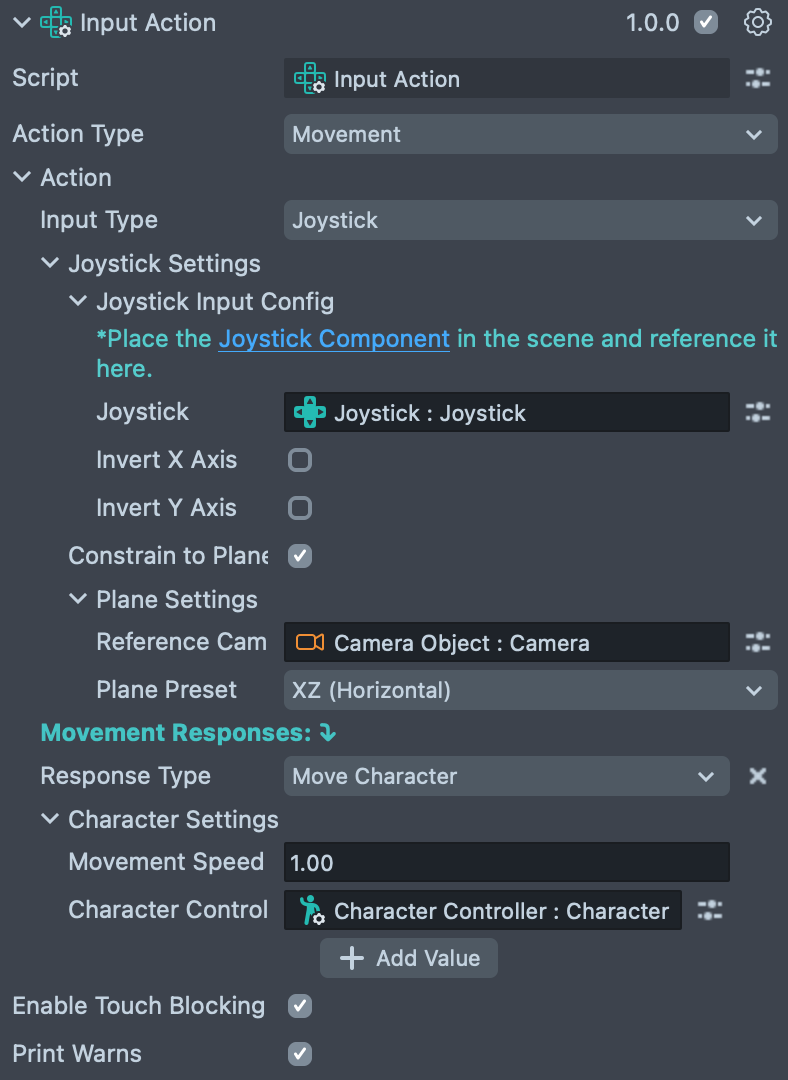
This example shows how to move a character using joystick input:
Keyboard support is only available in Lens Studio version 5.18 and later.
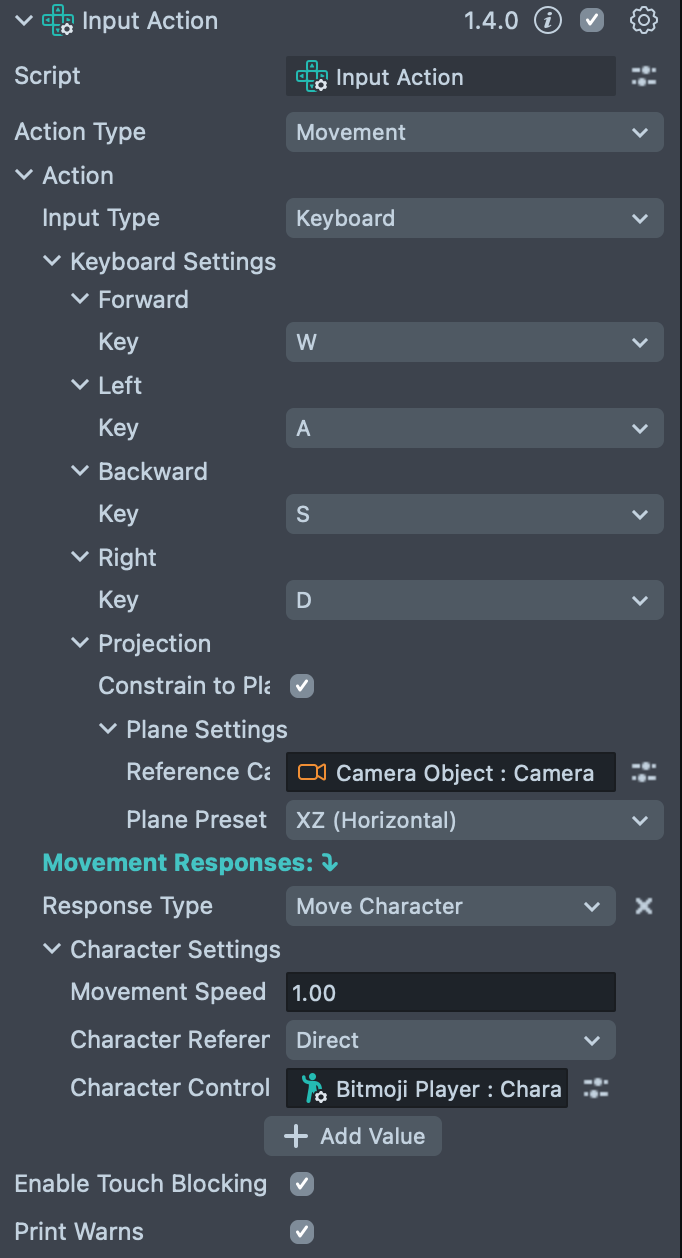
This example shows how to set up an instance of Input Action to move a character using the keys W, A, S, and D on your keyboard,
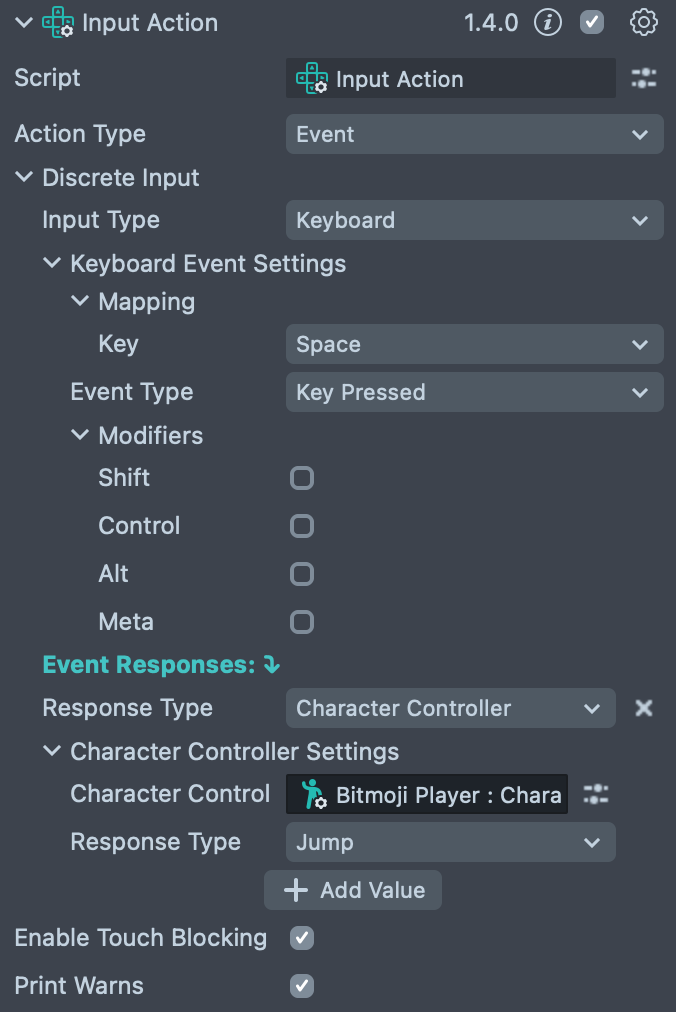
and an additional instance to jump when the spacebar is pressed. This can be useful for testing multiple actions in the Preview window whereas multiple touch inputs are not possible.
Multiple Input Action components can coexist in the same Lens and respond to different inputs or trigger different responses. You can use Input Action to execute different actions on a keyboard press, for example calling a script function or triggering a Behavior Component.
To make a camera follow an object and rotate around it using the device gyroscope:
- Create a pivot object inside the observed object and add a camera inside the pivot.
- Set the camera's Z position to a positive value to move it away from the pivot. You should see the target object in the camera view.
- Now set up the Input Action component to use the Gyroscope input, and add a Rotate Object response targeting the pivot object:
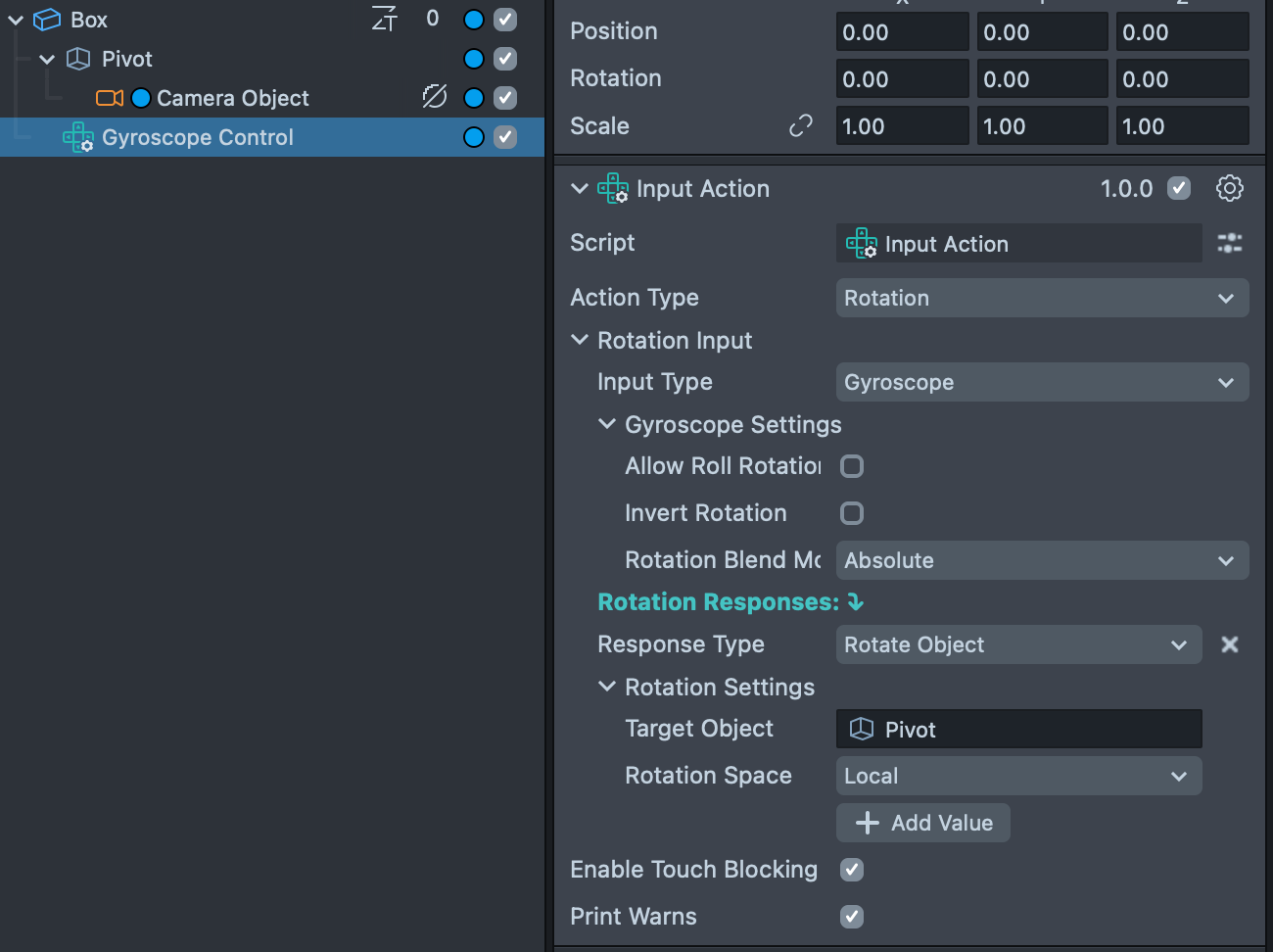
You can use this setup to make the camera follow a character and rotate around it as the user moves their device. For an advanced camera setup, use the Camera Controller component as the pivot's parent.
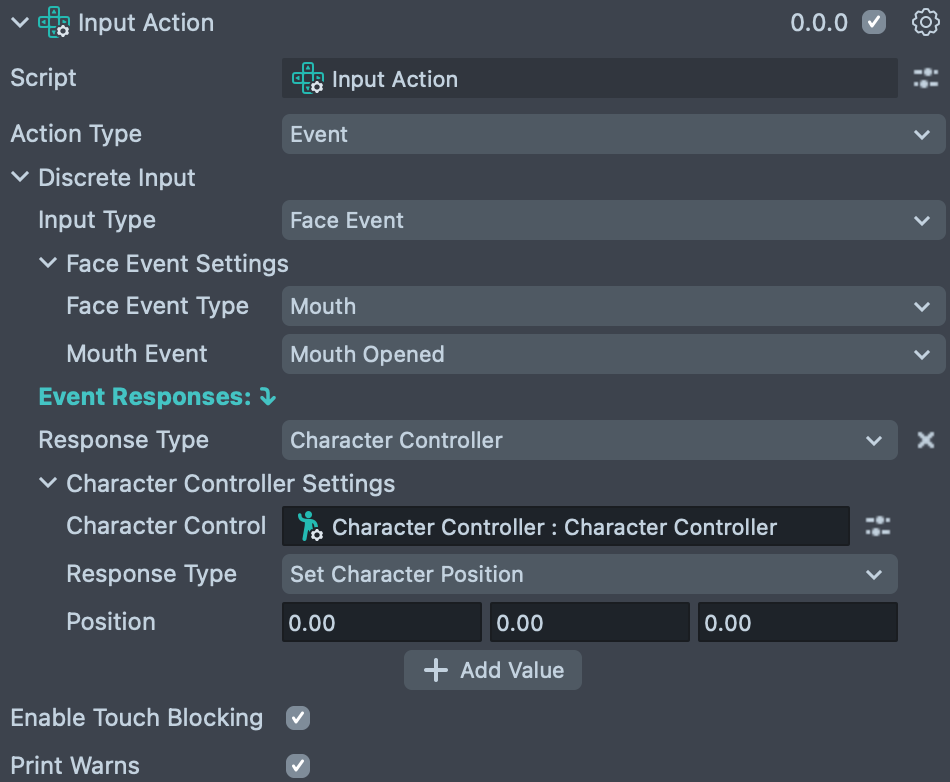
This example shows how to trigger a character position reset using the 'Mouth Opened' face event:
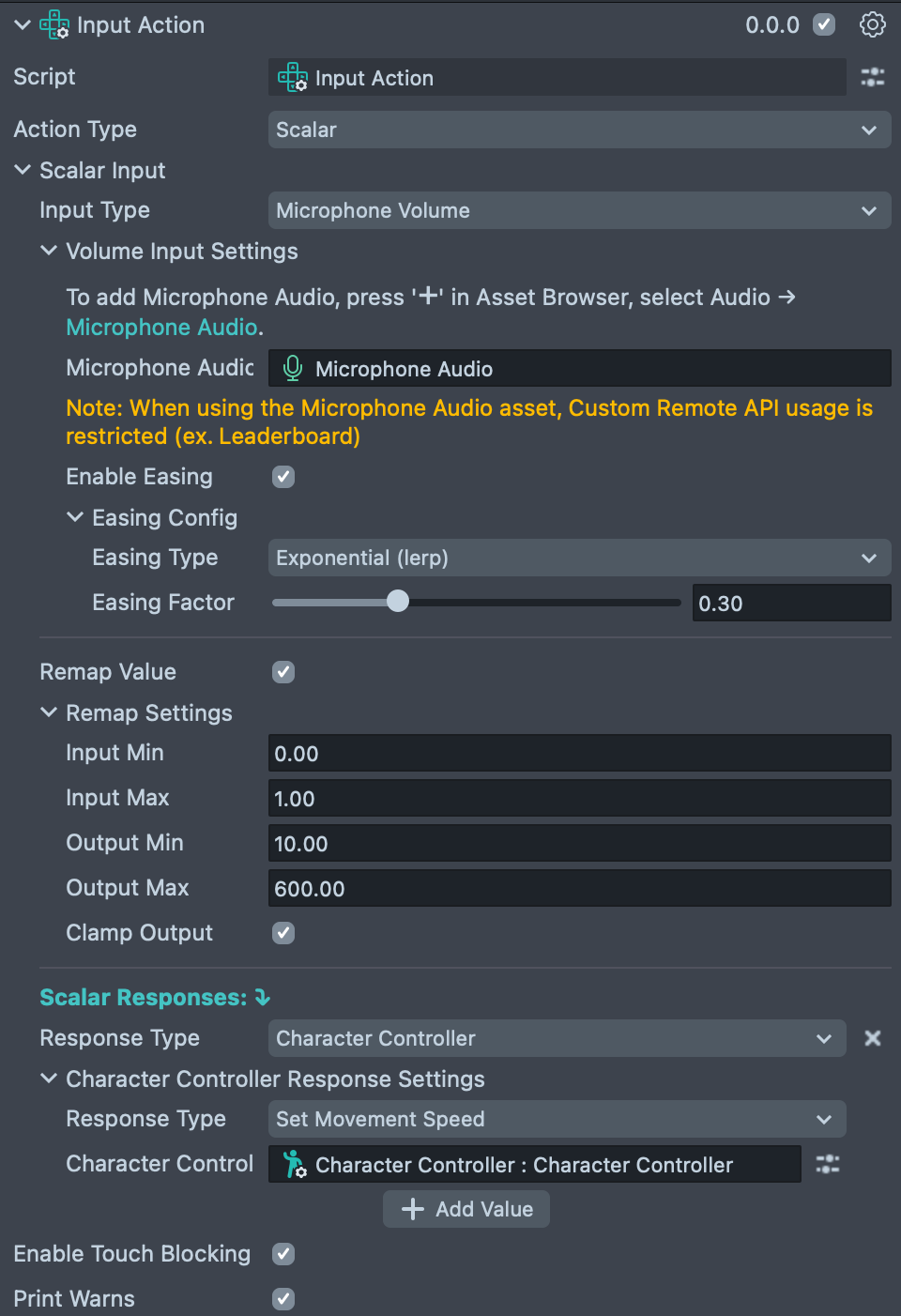
This example shows how to make a character run faster when the user shouts, using microphone volume as input:
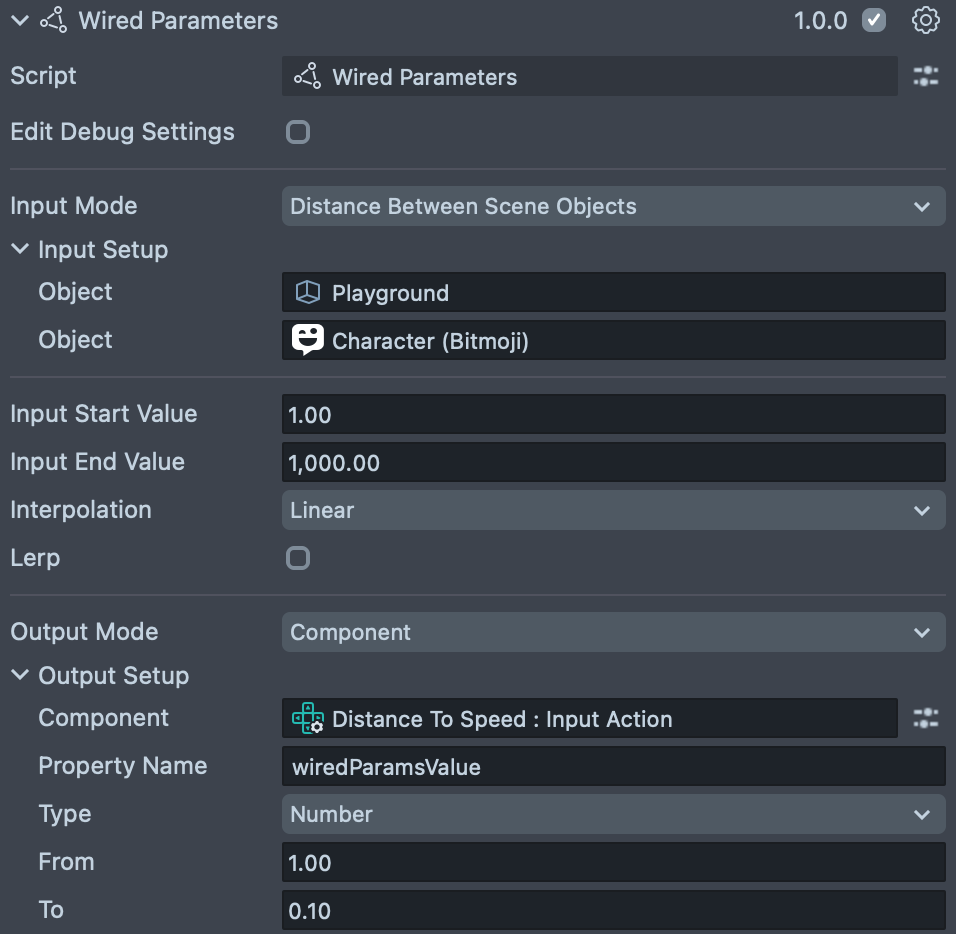
This example shows how to use a Wired Parameters value to modulate movement speed: the farther the user moves from the starting area, the slower the object or character moves.
To set up, add a Wired Parameters component and configure it to output the distance between a reference point (for example, the user's starting position) and the user's current position.
Add an Input Action component. Under Action Type, select Scalar, set Input Type to Wired Params and follow the inline instructions to reference your Wired Parameters component. Add a Response to apply the speed: choose Character Controller → Set Movement Speed, and assign your Character Controller component.
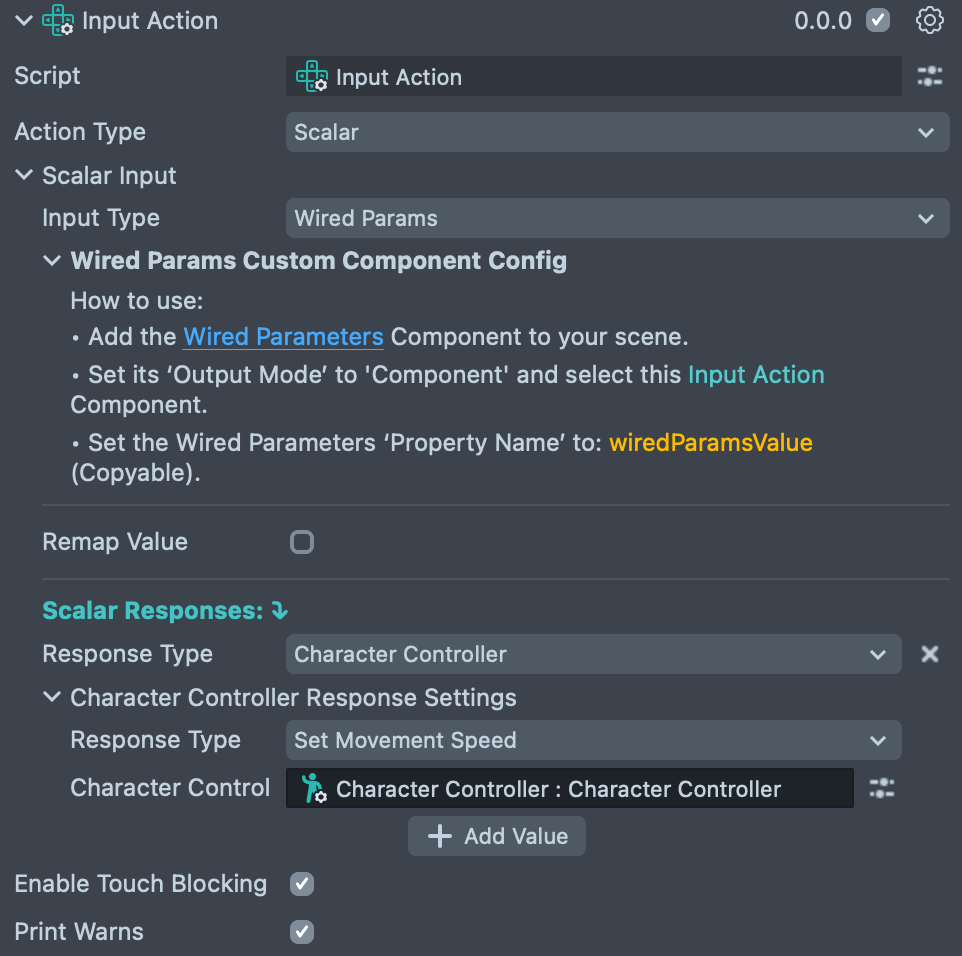
That's it. Distance now drives movement speed.
Component Inputs
InputActionComponent
The main component you add to a Scene Object; it serves as the entry point for configuring all input actions.
| Property | Type | Description |
|---|---|---|
| Action Type | UserActionType | The primary type of input action you want to create: Movement, Rotation, Event, or Scalar. |
| Movement Input | MovementInputActionConfig | Visible if Action Type is Movement. Contains all settings related to movement input. |
| Rotation Input | RotationInputActionConfig | Visible if Action Type is Rotation. Contains all settings related to rotation input. |
| Discrete Input | DiscreteInputActionConfig | Visible if Action Type is Event. Contains all settings for event-based (discrete) actions. |
| Scalar Input | ScalarInputActionConfig | Visible if Action Type is Scalar. Contains all settings for continuous value (scalar) inputs. |
| Screen Event Input | ScreenEventInputActionConfig | Visible if Action Type is Screen Event. Contains all settings for screen-based touch events. |
| Enable Touch Blocking | boolean | Disables the default Snapchat gestures, like pinch-to-zoom, for full-screen touch gameplay. |
| Print Warnings | boolean | If checked, the script prints warning messages to the logger for debugging. |
Movement Action Configurations
MovementInputActionConfig
Configures the source of movement input and how the system should respond.
| Property | Type | Description |
|---|---|---|
| Input Type | DirectionInputType | The source of the movement input. Currently, only Joystick is supported. |
| Joystick Settings | JoystickDirectionAdapterConfig | Visible if Input Type is Joystick. Settings for the joystick input. |
| Keyboard Settings | KeyboardMovementAdapterConfig | Visible if Input Type is Keyboard. Settings for using keyboard keys as movement input. |
| D-Pad Settings | DPadMovementAdapterConfig | Visible if Input Type is D-Pad. Settings for using interaction components as a D-Pad for movement input. |
| Movement Responses: | MovementResponseConfig[] | A list of actions to perform in response to the movement input (for example, move an object). |
JoystickDirectionAdapterConfig
Defines how to interpret joystick input for movement.
| Property | Type | Description |
|---|---|---|
| Joystick Input Config | JoystickInputConfig | The core settings for the joystick component itself. |
| Constrain to Plane | boolean | If checked, the 2D joystick direction is projected onto a 3D plane for movement in the scene. |
| Reference Camera | Camera | Visible if Constrain to Plane is checked. The camera to use as a reference for projecting the movement direction. If not set, the world space is used. |
| Plane Preset | PlanePreset | Visible if Constrain to Plane is checked. A preset for the plane to project onto (XZ, XY, or Custom). |
| Custom Plane | vec3 | Visible if Plane Preset is Custom. The normal of the custom plane to project the movement onto. |
MovementResponseConfig
Defines a single response to a movement input.
| Property | Type | Description |
|---|---|---|
| Response Type | DirectionResponseType | The type of movement response: Move Object or Move Character. |
| Movement Settings | MoveObjectConfig | Visible if Response Type is Move Object. Settings for moving a standard Scene Object. |
| Character Settings | MoveCharacterConfig | Visible if Response Type is Move Character. Settings for moving a Character Controller. |
MoveObjectConfig
Settings for the "Move Object" response.
| Property | Type | Description |
|---|---|---|
| Target Object | SceneObject | The Scene Object that will be moved. |
| Speed | number | The speed at which the object will move. |
| Movement Space | MovementSpace | The coordinate space for the movement (Local or World). |
MoveCharacterConfig
Settings for the "Move Character" response.
| Property | Type | Description |
|---|---|---|
| Movement Speed | number | A multiplier for the character's movement speed. |
| Character Controller | CharacterController | A reference to the Character Controller script component to be moved. |
Rotation Action Configurations
RotationInputActionConfig
Configures the source of rotation input and the corresponding responses.
| Property | Type | Description |
|---|---|---|
| Input Type | RotationInputType | The source of the rotation input: Joystick or Gyroscope. |
| Joystick Settings | JoystickRotationAdapterConfig | Visible if Input Type is Joystick. Settings for using a joystick for rotation. |
| Gyroscope Settings | GyroscopeRotationAdapterConfig | Visible if Input Type is Gyroscope. Settings for using the device's gyroscope for rotation. |
| Rotation Responses: | RotationResponseConfig[] | A list of actions to perform in response to the rotation input. |
JoystickRotationAdapterConfig
Defines how to interpret joystick input for rotation.
| Property | Type | Description |
|---|---|---|
| Joystick Input Config | JoystickInputConfig | The core settings for the joystick component. |
| Speed | number | The speed of the rotation. |
| Block Flips | boolean | If checked, prevents the object from rotating upside down (flipping over the Y-axis). |
GyroscopeRotationAdapterConfig
Defines how to interpret gyroscope input.
| Property | Type | Description |
|---|---|---|
| Allow Roll Rotation | boolean | If checked, allows for "rolling" rotation (like a plane banking). |
| Invert Rotation | boolean | If checked, inverts the rotation input from the gyroscope. |
| Rotation Blend Mode | RotationBlendMode | How the rotation is applied: Additive (accumulates over time) or Absolute (sets directly). |
RotationResponseConfig
Defines a single response to a rotation input.
| Property | Type | Description |
|---|---|---|
| Response Type | RotationResponseType | The type of rotation response. Currently, only Rotate Object is supported. |
| Rotation Settings | RotateObjectResponseConfig | Visible if Response Type is Rotate Object. Settings for rotating a Scene Object. |
RotateObjectResponseConfig
Settings for the "Rotate Object" response.
| Property | Type | Description |
|---|---|---|
| Target Object | SceneObject | The Scene Object that will be rotated. |
| Rotation Space | RotationSpace | The coordinate space for the rotation (Local or World). |
Discrete (Event) Action Configurations
DiscreteInputActionConfig
Configures event-based triggers and their responses.
| Property | Type | Description |
|---|---|---|
| Input Type | DiscreteInputType | The source of the event: Interaction Component or Face Event. |
| Interaction Component Settings | InteractionComponentDiscreteAdapterConfig | Visible if Input Type is Interaction Component. Settings for using an Interaction Component as a trigger. |
| Face Event Settings | FaceEventDiscreteAdapterConfig | Visible if Input Type is Face Event. Settings for using a face gesture as a trigger. |
| Event Responses: | DiscreteResponseConfig[] | A list of actions to perform when the event is triggered. |
InteractionComponentDiscreteAdapterConfig
Settings for using an Interaction Component as an event source.
| Property | Type | Description |
|---|---|---|
| Interaction Component | InteractionComponent | A reference to the Interaction Component to listen to. |
| Action Type | InteractionComponentActionType | The specific event to listen for (Tap, TouchStart, TouchEnd, onHoverEnter, onHoverExit). |
FaceEventDiscreteAdapterConfig
Settings for using face events as a trigger.
| Property | Type | Description |
|---|---|---|
| Face Event Type | FaceEventType | The category of face event to use (Smile, Mouth, Kiss, Brows, Face Tracking). |
| Smile Event | number | Visible if Face Event Type is Smile. The specific smile event (Smile Started, Smile Finished). |
| Mouth Event | number | Visible if Face Event Type is Mouth. The specific mouth event (Mouth Opened, Mouth Closed). |
| Kiss Event | number | Visible if Face Event Type is Kiss. The specific kiss event (Kiss Started, Kiss Finished). |
| Brows Event | number | Visible if Face Event Type is Brows. The specific brows event (Brows Raised, Brows Lowered, etc.). |
| Face Tracking Event | number | Visible if Face Event Type is Face Tracking. The specific tracking event (Face Found, Face Lost). |
DiscreteResponseConfig
Defines a single response to a discrete event.
| Property | Type | Description |
|---|---|---|
| Response Type | DiscreteResponseType | The type of response: Character Controller, Component API Call, or Behavior. |
| Character Controller Settings | CharacterControllerDiscreteResponseConfig | Visible if Response Type is Character Controller. Settings for interacting with a Character Controller. |
| Component API Response Config | ComponentApiResponseConfig | Visible if Response Type is Component API Call. Settings for calling a function on another script. |
| Behavior Response Settings | BehaviorResponseConfig | Visible if Response Type is Behavior. Settings for triggering a Behavior script. |
CharacterControllerDiscreteResponseConfig
Settings for the "Character Controller" discrete response.
| Property | Type | Description |
|---|---|---|
| Character Controller | CharacterController | A reference to the Character Controller script component. |
| Response Type | CharacterControllerDiscreteResponseType | The action to perform. Currently, only Set Character Position is supported. |
| Position | vec3 | Visible if Response Type is Set Character Position. The world position to move the character to. |
ComponentApiResponseConfig
Settings for the "Component API Call" response.
| Property | Type | Description |
|---|---|---|
| Component | BaseScriptComponent | The script component that contains the method you want to call. |
| Method Name | string | The name of the method (function) to call on the specified component. |
BehaviorResponseConfig
Settings for the "Behavior" response.
| Property | Type | Description |
|---|---|---|
| Behavior Trigger Type | BehaviorResponseType | The method for triggering the behavior script: Global Custom Trigger or Manual Trigger. |
| Custom Trigger Name | string | Visible if Behavior Trigger Type is Global Custom Trigger. The name of the global custom trigger to send. |
| Behavior Script | BaseScriptComponent | Visible if Behavior Trigger Type is Manual Trigger. A reference to the Behavior script whose trigger function will be called. |
Scalar Action Configurations
ScalarInputActionConfig
Configures inputs that produce a continuous value (a scalar) and their responses.
| Property | Type | Description |
|---|---|---|
| Input Type | ScalarInputType | The source of the scalar value: Microphone Volume or Wired Params. |
| Volume Input Settings | VoiceAdapterConfig | Visible if Input Type is Microphone Volume. Settings for using microphone volume as input. |
| Wired Params Custom Component Config | WiredParamsAdapterConfig | Visible if Input Type is Wired Params. Settings for using a Wired Parameters component as input. |
| Remap Value | boolean | If checked, the input value will be remapped to a new range. |
| Remap Settings | RemapConfig | Visible if Remap Value is checked. The settings for remapping the value. |
| Scalar Responses: | ScalarResponseConfig[] | A list of actions to perform in response to the scalar value. |
VoiceAdapterConfig
Settings for using microphone volume as a scalar input.
| Property | Type | Description |
|---|---|---|
| Microphone Audio Asset | AudioTrackAsset | A reference to the Microphone Audio asset in your project. |
| Enable Easing | boolean | If checked, the input value will be smoothed over time. |
| Easing Config | ScalarEasingConfig | Visible if Enable Easing is checked. The settings for the smoothing effect. |
ScalarEasingConfig
Settings for smoothing a scalar value.
| Property | Type | Description |
|---|---|---|
| Easing Type | EasingType | The type of easing to apply. Currently, only Exponential (lerp) is supported. |
| Easing Factor | number | Visible if Easing Type is Exponential. The amount of smoothing to apply (0.01 to 1). Higher values are less smooth. |
WiredParamsAdapterConfig
Instructions for connecting a Wired Parameters component. Does not have any configurable properties.
RemapConfig
Settings for remapping a scalar value from one range to another.
| Property | Type | Description |
|---|---|---|
| Input Min | number | The minimum expected value from the input source. |
| Input Max | number | The maximum expected value from the input source. |
| Output Min | number | The new minimum value to map to. |
| Output Max | number | The new maximum value to map to. |
| Clamp Output | boolean | If checked, the output value will be forced to stay within the Output Min and Output Max range. |
ScalarResponseConfig
Defines a single response to a scalar input.
| Property | Type | Description |
|---|---|---|
| Response Type | ScalarResponseType | The type of response: Character Controller or Map To Movement. |
| Character Controller Response Settings | CharacterControllerResponseConfig | Visible if Response Type is Character Controller. Settings for controlling a Character Controller with the scalar value. |
| Map To Movement Response Settings | MapToMovementResponseConfig | Visible if Response Type is Map To Movement. Settings for using the scalar value to drive movement. |
CharacterControllerResponseConfig
Settings for the "Character Controller" scalar response.
| Property | Type | Description |
|---|---|---|
| Response Type | ResponseType | The action to perform. Currently, only Set Movement Speed is supported. |
| Character Controller Component | CharacterController | A reference to the Character Controller script component. |